A 4K monitor shows four times as many pixels as a 1080p screen, so text is razor sharp, photos look detailed and games reveal textures you never noticed before. It is a fantastic upgrade for creative work and cinematic games, but it asks a lot of your graphics card and is not always the best choice for fast competitive play. This guide explains what a 4K monitor offers, which size and refresh rate to choose, how panel types compare and what PC you need to drive one.
North Gaming PCs prices monitors and gaming PCs in Canadian dollars with a 2-year warranty. Our current monitor range focuses on 1080p and 1440p screens, and this guide will help you decide whether 4K is the right step for you. Every price is shown in Canadian dollars, so there is no surprise currency conversion at checkout, and you can email our team whenever you need help choosing.
What is a 4K monitor?
A 4K monitor has a resolution of 3840 x 2160 pixels, often called UHD. That is roughly 8.3 million pixels, compared with 3.7 million at 1440p and 2.1 million at 1080p. More pixels mean sharper text, finer detail and more room for windows side by side.
27 inches or 32 inches?
Size changes the experience:
- 27-inch 4K: about 163 pixels per inch. Extremely sharp, but Windows needs 150 percent scaling for comfortable text.
- 32-inch 4K: about 140 pixels per inch. The sweet spot for many people, with sharp detail and a big, immersive screen.
- 40 inches and above: large screens for productivity or couch gaming, often TVs used as monitors.
For a desk at normal viewing distance, a 32-inch 4K monitor makes the most of the extra pixels.
Refresh rate at 4K
Older 4K screens ran at 60 Hz, which suits work and slow games. Modern gaming models reach 144 Hz, 160 Hz and even 240 Hz. To use those refresh rates you need a graphics card that can produce the frames, plus DisplayPort 1.4 with DSC, DisplayPort 2.1 or HDMI 2.1. A 144 Hz 4K monitor offers a great balance of sharpness and smoothness.
Panel types
- IPS: accurate colours, wide viewing angles and good brightness.
- VA: higher contrast and deeper blacks, with slower dark transitions.
- OLED: perfect blacks, superb HDR and the fastest response, at a higher price.
- Mini-LED IPS: bright HDR with many local dimming zones.
Our OLED monitor guide explains the pros and cons of OLED in detail.
The graphics card a 4K monitor needs
Gaming at 4K is demanding. As a guide:
- RTX 5070 Ti: 4K at high settings in many games with DLSS.
- RTX 5080: smooth 4K at high to maximum settings.
- RTX 5090: 4K at maximum settings and very high refresh rates.
DLSS and other upscalers make 4K far more practical by rendering at a lower resolution internally. Read our 4K gaming PC guide for a full system breakdown.
HDR on a 4K monitor
HDR adds brighter highlights and richer colour. For a real HDR experience, look for DisplayHDR 600 or higher, local dimming or an OLED panel. Basic HDR400 screens often look washed out in HDR mode. The VESA DisplayHDR programme explains what each certification level means.
Ports and connectivity
Check the inputs before buying a 4K monitor. DisplayPort is best for high refresh PC gaming. HDMI 2.1 is needed for PS5 and Xbox Series X at 4K 120 Hz. USB-C with power delivery is handy for laptops, carrying video and charging over one cable.
4K monitor for work and creative tasks
For photo editing, video work, coding and spreadsheets, a 4K display is a big productivity boost. Text looks crisp, and you can fit more on screen. Choose an IPS or OLED model with good colour accuracy if you edit photos or video, and calibrate it for the best results.
4K monitor for consoles
The PS5 and Xbox Series X both output 4K at up to 120 Hz in supported games. A 4K screen with HDMI 2.1 and VRR support gives consoles their best picture at a desk. Our best monitor for PS5 guide covers console features.
4K or 1440p?
At 27 inches, 1440p is already sharp and lets graphics cards push much higher frame rates. Competitive players often prefer 1440p or 1080p at 240 Hz. A 4K monitor shines at 32 inches and above, and in slower, visually rich games. Our 1440p vs 4K comparison explains the trade-offs in detail.
4K monitor for sim racing and flight sim
Flight simulators benefit greatly from 4K, with readable cockpit gauges and detailed scenery. For sim racing, a single large 4K screen is immersive, while triple screens offer a wider field of view. Mount large screens on a rigid monitor stand so they stay steady under force feedback.
Setting up a 4K monitor
Set Windows scaling to 125 to 150 percent on a 27-inch 4K monitor and 100 to 125 percent on a 32-inch model. Use DisplayPort or HDMI 2.1 for the full refresh rate, enable G-Sync or FreeSync, and turn on HDR only if the screen supports it well. Check the refresh rate in Windows display settings after connecting.
Text scaling and everyday use
High pixel density changes how Windows looks. On a 27-inch screen at 4K, text and icons are tiny at 100 percent scaling, so most people use 150 percent. Modern apps scale well, but a few older programs can look blurry. On a 32-inch model, 125 percent scaling gives a good balance of sharpness and workspace, which is one reason that size is so popular.
Brightness, coatings and room lighting
Brightness matters in sunny rooms. IPS and Mini-LED screens get brighter than most OLED panels across the whole screen, while OLED excels in dim rooms. Matte coatings reduce reflections from windows and lamps, and glossy coatings make colours look richer in controlled lighting. Think about where your desk sits before choosing.
Is a 4K monitor worth it?
A 4K monitor is worth it if you value sharpness for work, play cinematic games or use a large screen. If you play fast shooters or have a mid-range graphics card, a high refresh 1440p monitor gives a better experience for the money.
Our picks
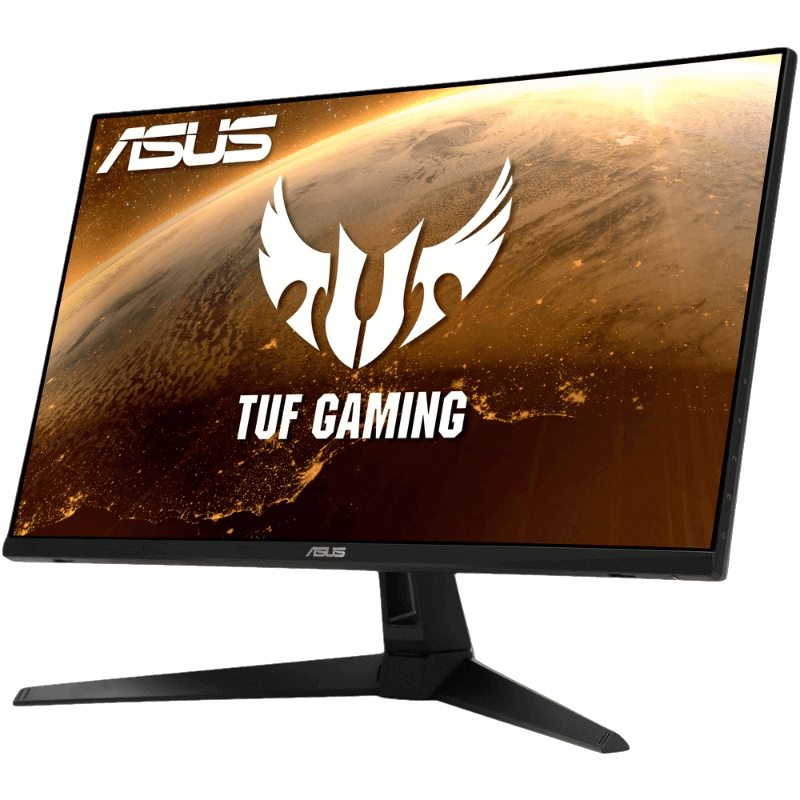
- ASUS TUF 1440p monitor: a fast, sharp 27-inch alternative to 4K at 170 Hz.
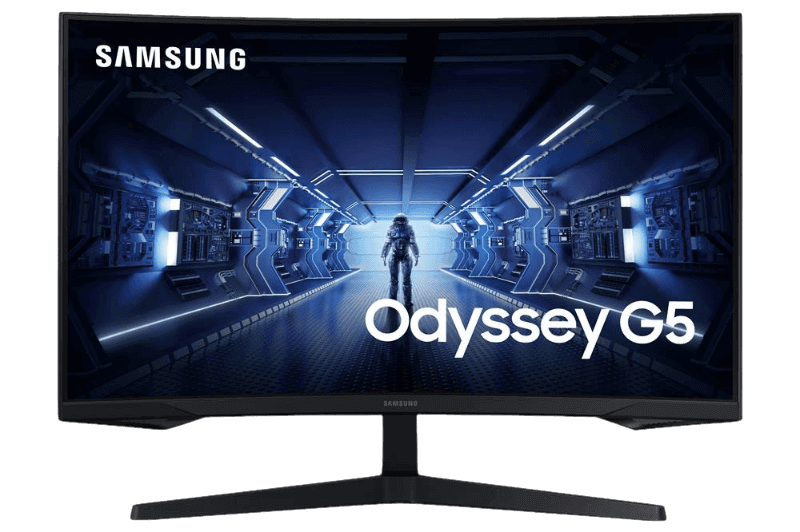
- Samsung Odyssey G5: a curved 1440p screen with deep contrast.
- 4TB NVMe SSD: room for large 4K texture packs and games.
4K monitor FAQ
What graphics card do I need for a 4K monitor?
An RTX 5070 Ti for entry 4K with DLSS, and an RTX 5080 or RTX 5090 for high settings at high refresh rates.
Is a 27-inch 4K monitor too small?
It is very sharp but needs scaling. Many people prefer 32 inches for 4K.
Can I use a 4K monitor at 1440p?
Yes, but the image looks softer than a native 1440p screen. Upscaling such as DLSS is a better way to boost frame rates.
Does a 4K monitor help with work?
Yes. Sharper text and more screen space make documents, code and photo editing more comfortable.
Choose your display
A 4K monitor delivers outstanding sharpness for work, creative tasks and cinematic games, with a 32-inch screen at 144 Hz as the sweet spot for many players. Make sure your graphics card can keep up, or choose a fast 1440p screen instead. Browse our gaming monitors, or contact us for advice.