A monitor arm is one of the simplest upgrades for any desk. It lifts the screen to the right height, frees up space underneath and lets you move the display closer, further, higher or into portrait with one hand. It also tidies cables and makes dual and triple setups easy. This guide explains how to choose a monitor arm: VESA mounts, weight limits, clamp types, gas springs and special cases such as ultrawides and sim rigs.
North Gaming PCs sells monitor stands and mounts for desks and sim rigs, priced in Canadian dollars with a 2-year warranty. If you are unsure which option suits you, our team is happy to compare specifications with you and suggest a setup that fits your space, budget and plans.
Why use a monitor arm?
Most monitor stands only tilt and adjust height a little. A monitor arm adds full control over height, depth, tilt, swivel and rotation. Good posture comes from placing the top of the screen at or slightly below eye level, about an arm’s length away, and an arm makes that easy. It also clears the desk, giving you more room for your keyboard, mouse and a large desk mat.
Check VESA compatibility
Monitor arms attach to the back of the screen using the VESA mounting pattern. The most common sizes are 75 x 75 mm and 100 x 100 mm. Larger screens may use 200 x 200 mm. Check your monitor’s specifications for its VESA size; if it has none, an adapter bracket may help. The VESA organisation sets these standards.
Weight and size limits
Every monitor arm lists a maximum weight and screen size. Weigh your monitor without its stand and choose an arm rated comfortably above that figure. Ultrawide and curved monitors are often heavier and wider than they look, so check both the weight and the width limits.
Gas spring vs mechanical spring
- Gas spring arms: move smoothly with one hand and hold position at any height. Great for frequent adjustment.
- Mechanical spring arms: also smooth, often with a wider weight range and longer life.
- Fixed pole mounts: cheaper and very stable, but adjustments require tools.
If you adjust your screen often, a quality spring arm is worth it.
Clamp or grommet?
Most monitor arms attach to the desk with a C-clamp on the back edge or a grommet mount through a hole in the desk. Check your desk’s thickness and edge clearance, and make sure nothing behind the desk, such as a wall or radiator, blocks the clamp. Glass and thin particleboard desks may need a reinforcement plate to spread the load.
Single, dual and triple arms
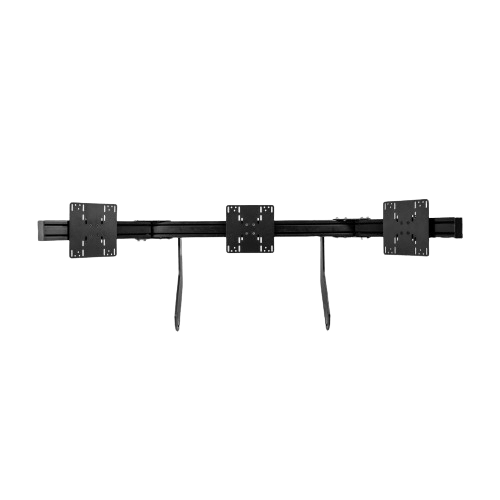
Dual arms suit work and streaming setups, holding two screens side by side or one above the other. Triple arms suit simulation and multitasking, but need a sturdy desk and careful alignment. Our dual monitor setup guide explains how to arrange two screens.
Cable management
Many monitor arms include clips or channels to route cables along the arm. Leave a little slack at each joint so you can move the screen without pulling the connectors. Route power and display cables down the pole and into an under-desk tray, then secure them with Velcro ties so nothing hangs loose.
Monitor arm for ultrawides
Ultrawide monitors are wide and often heavy, which makes them flex on weaker arms. Choose an arm rated well above the monitor’s weight, with a sturdy pole and strong joints. A gas spring arm designed for heavy screens keeps the display level.
Monitor arm vs floor stand for sim racing
On a sim rig, a desk monitor arm is rarely the best choice, because the screen must sit close to the wheel and stay perfectly still under force feedback. Floor stands and cockpit-mounted brackets hold screens rigidly at the right height and distance. For triple screens, a dedicated triple monitor stand keeps the side screens angled correctly. Browse our monitor stands for rigid options.
Setting up your arm
- Mount the base on the desk and tighten it firmly.
- Attach the VESA plate to the monitor while it lies face down on a soft surface.
- Lift the monitor onto the arm and lock it in place.
- Adjust the spring tension so the screen stays put at your chosen height.
- Route cables and fine-tune height, tilt and distance.
Monitor arm for laptops and tablets
Some monitor arm systems accept a laptop tray, which lifts a laptop to eye level beside a main screen. This is a neat way to build a dual-screen workspace with a laptop. Combine it with an external keyboard and mouse to avoid hunching over the laptop’s built-in keyboard.
Common monitor arm mistakes
The most common mistakes are choosing an arm with too low a weight rating, forgetting to check the desk thickness and overtightening the clamp on a thin desk. Another is skipping cable management, so cables pull on the monitor’s ports when the screen moves. Take time to set the spring tension correctly so the monitor does not drift up or down.
How long does a monitor arm last?
A quality monitor arm lasts many years and often outlives the monitor itself. Gas springs can weaken slowly over time, but many models let you adjust or replace them. Choosing a reputable brand with a long warranty pays off when you upgrade to a bigger screen later.
Ergonomic tips
Set the top of the screen at eye level or slightly below, tilt it back a little and keep it about an arm’s length away. With two screens, place the one you use most directly in front of you. Small adjustments throughout the day help reduce neck strain.
Our picks
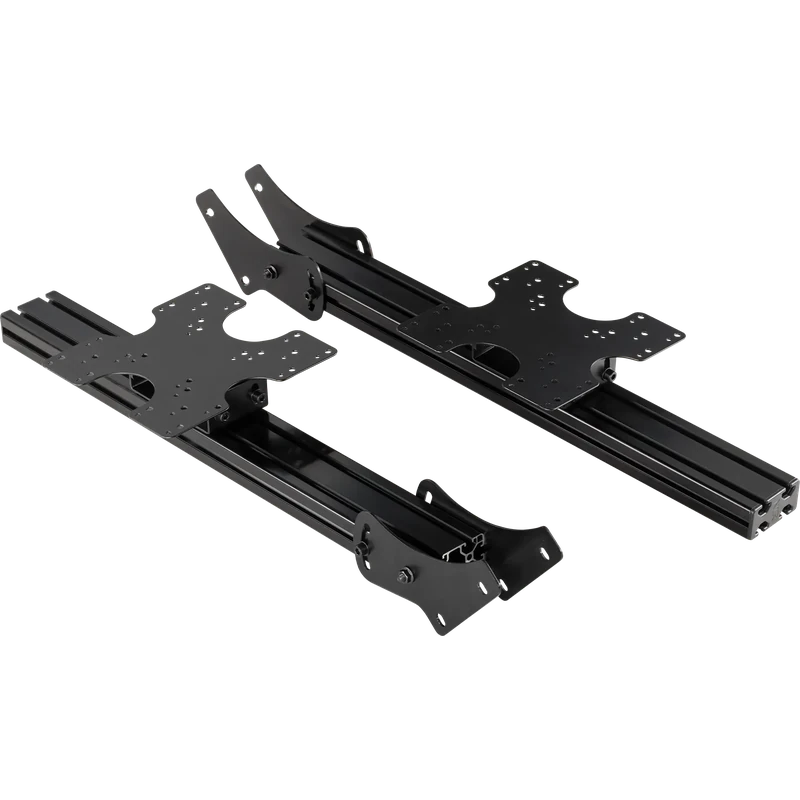
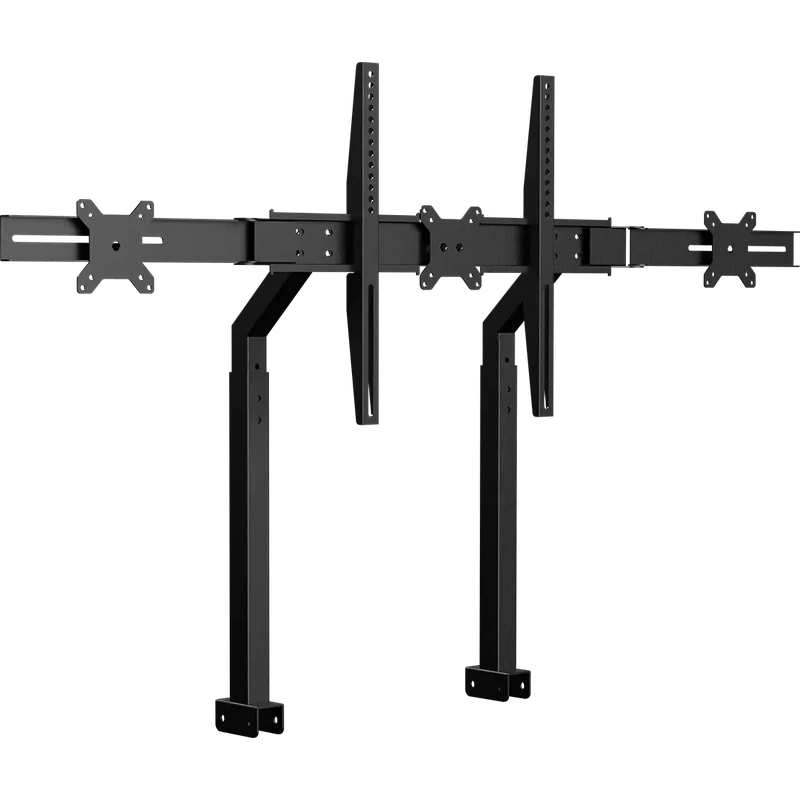
- Next Level Racing triple monitor stand: a freestanding stand for triple-screen sim rigs.
- Next Level Racing F-GT monitor stand: designed to pair with F-GT cockpits.
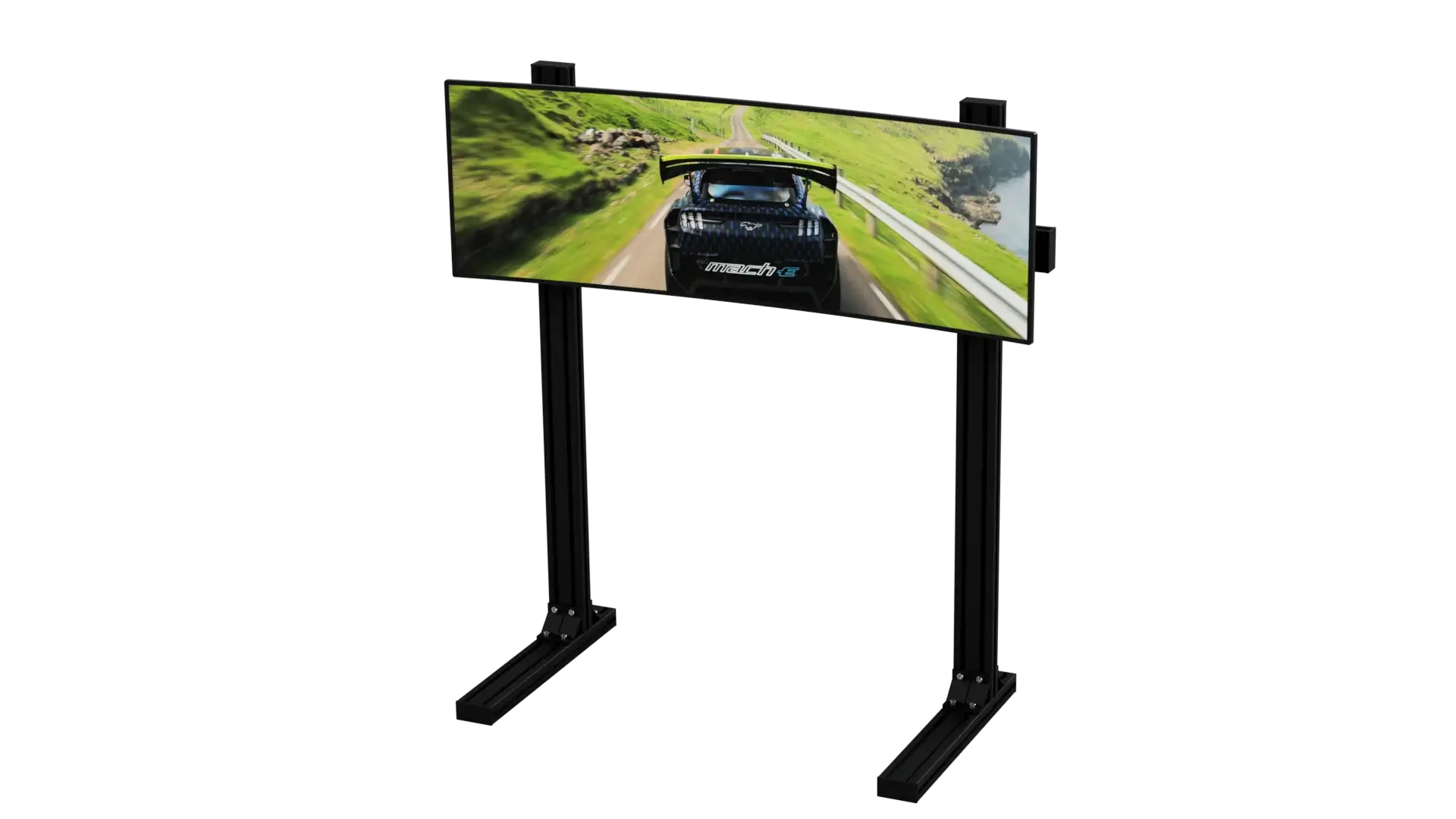
- 6Sigma single monitor floor stand: a rigid stand for a single monitor or TV beside a rig.
For heavy triple setups, the triple screen support mounts three monitors on one frame.
Monitor arm FAQ
Will a monitor arm fit my monitor?
It will if your monitor has a VESA mount and its weight and size are within the arm’s limits.
Can a monitor arm hold an ultrawide?
Yes, if it is rated for the weight and width. Choose a heavy-duty model.
Is a monitor arm good for sim racing?
For desk setups, yes. For cockpits, a floor stand or rig mount is more stable.
Will a monitor arm damage my desk?
Not if the desk is solid and the clamp is tightened properly. Use a reinforcement plate on thin or glass desks.
Can I use a monitor arm with a standing desk?
Yes. Make sure cables have enough slack for the desk’s full height range, and check that the desk can carry the extra weight.
How do I level a monitor on an arm?
Most arms have a small adjustment screw at the VESA plate. Loosen it slightly, rotate the screen until level and tighten it again.
Mount it right
A monitor arm improves comfort, frees desk space and makes multi-screen setups easy. Check the VESA size, weight and desk mounting, and choose a sturdier option for heavy and ultrawide screens. Browse our monitor stands, or contact us for advice.