A computer monitor is the part of your PC you look at every single minute, so it deserves careful thought. The right screen makes games look smooth, keeps text sharp for work and reduces eye strain during long days. The wrong one can feel blurry, slow or uncomfortable. This guide explains how to choose a computer monitor by size, resolution, refresh rate, panel type and ports, so you can pick one that suits work, study and play.
North Gaming PCs prices every monitor in Canadian dollars, and every monitor we sell is covered by our 2-year warranty. Our team can also help with setup questions after your order arrives, so you can get everything configured properly and enjoy your upgrade from the first day.
Choose the right size
Size depends on your desk and how far you sit from the screen:
- 24 inches: ideal for 1080p, competitive gaming and smaller desks.
- 27 inches: the most popular size, perfect for 1440p.
- 32 inches: great for 4K, productivity and immersive games.
- 34-inch ultrawide: wide immersion for racing, flight sim and multitasking.
Sit about an arm’s length from a 24 to 27-inch computer monitor, and a little further from larger screens.
Resolution and sharpness
Resolution sets how sharp the image looks. Pixel density, measured in pixels per inch, matters more than resolution alone:
- 1080p at 24 inches: about 92 PPI, sharp enough for gaming.
- 1440p at 27 inches: about 109 PPI, the sweet spot for most people.
- 4K at 27 to 32 inches: 140 to 163 PPI, very sharp text and detail.
Higher resolutions need more graphics power for gaming. Our 1440p monitor guide explains why 1440p is so popular.
Refresh rate
Refresh rate, in hertz, is how many times per second the screen updates. A 60 Hz computer monitor is fine for office work, but gaming feels much smoother at 144 Hz or more. Competitive players often choose 240 Hz. Make sure your graphics card can reach those frame rates in your games.
Panel types
The panel decides colour, contrast and viewing angles:
- IPS: accurate colours and wide viewing angles, a great all-rounder.
- VA: high contrast and deep blacks, good for films and dark games.
- OLED: perfect blacks and the fastest response, with a higher price.
- TN: fast and cheap, but weaker colours and viewing angles.
Read our IPS vs VA comparison for help choosing.
Response time and motion clarity
Response time measures how quickly pixels change colour. Lower is better for fast games, reducing smearing behind moving objects. Many gaming monitors list 1 ms, but real-world performance varies, so check independent reviews from testers such as RTINGS.
Adaptive sync
G-Sync and FreeSync match the monitor’s refresh rate to your graphics card’s frame rate, removing tearing and stutter. Most gaming monitors support FreeSync, and many are certified G-Sync compatible for NVIDIA cards. It is one of the most important features for smooth gaming.
Ports and connections
Check that your computer monitor has the right inputs:
- DisplayPort: the best choice for high refresh PC gaming.
- HDMI 2.1: needed for consoles at 4K 120 Hz or 1440p 120 Hz.
- USB-C with power delivery: handy for laptops, carrying video, data and charging in one cable.
- USB hub: adds convenient ports to the desk.
Ergonomics
A good stand adjusts height, tilt and swivel, and sometimes rotates to portrait. Position the top of the screen at or slightly below eye level. If the stand is basic, a VESA-compatible monitor arm solves it.
Eye comfort features
Flicker-free backlights and low blue light modes reduce eye strain. Matte screen coatings cut reflections in bright rooms. Bias lighting behind the computer monitor helps in dark rooms.
Work and gaming on one screen
A 27-inch 1440p monitor at 144 Hz to 170 Hz is the best all-round choice for work and gaming. It shows plenty of content for spreadsheets and documents while keeping games smooth. For heavy multitasking, consider a dual monitor setup or an ultrawide.
Built-in speakers and audio
Many monitors include small built-in speakers, which are fine for system sounds and casual videos but weak for games and music. A headset or a pair of desktop speakers delivers far better audio. If your computer monitor has a headphone jack, you can route console or PC audio through HDMI or DisplayPort and plug your headset into the screen.
HDR on a budget monitor
Many affordable monitors advertise HDR support, but only bright panels with local dimming or OLED technology show a real HDR effect. On a basic HDR400 computer monitor, HDR can look washed out. For most budget screens, standard SDR mode with good calibration looks better. If HDR matters to you, look for HDR600 or higher, or an OLED panel.
Calibration and settings
Out of the box, many monitors are set very bright with exaggerated colours. Lower the brightness to a comfortable level for your room, choose the sRGB mode for accurate colours in everyday use and turn on overdrive at a medium setting for gaming. Our guide on how to check monitor refresh rate helps you confirm the screen runs at its full speed.
How long does a computer monitor last?
A good computer monitor lasts many years, often outliving several PCs. LCD backlights dim slowly over time, while OLED panels can wear unevenly with heavy static use. Choosing a quality model with a solid warranty means it will serve you well across future upgrades.
Monitors for consoles
PS5 and Xbox Series X players should choose a computer monitor with HDMI 2.1 for 120 Hz gaming. Our best monitor for PS5 guide covers console settings and features.
Monitors for sim racing and flight sim
Simulators benefit from wide fields of view. An ultrawide or triple-monitor setup gives better peripheral vision in racing, while a large 4K screen shows detailed cockpits in flight sim. Mount screens on a rigid monitor stand for the best position.
Our picks
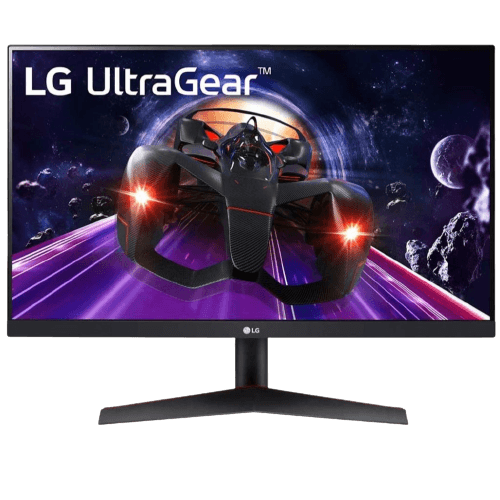
- LG 24-inch 144 Hz monitor: a crisp IPS screen for 1080p gaming and study.
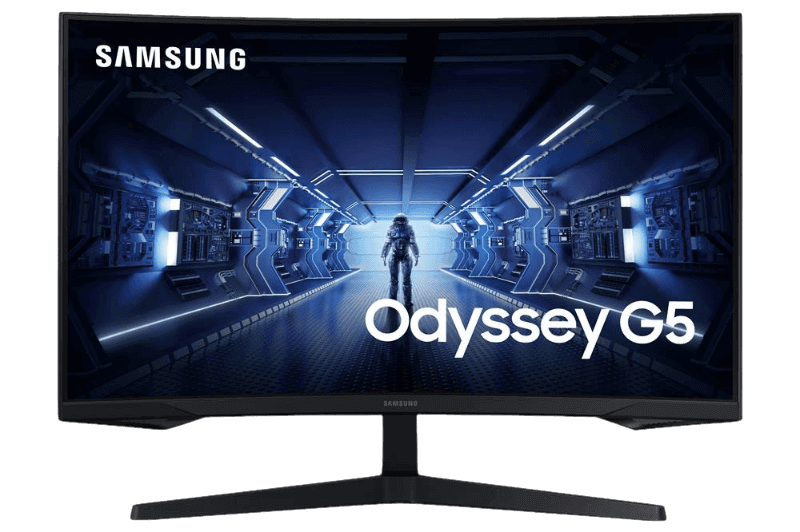
- Samsung Odyssey G5: a curved 27-inch 1440p VA monitor at 165 Hz.
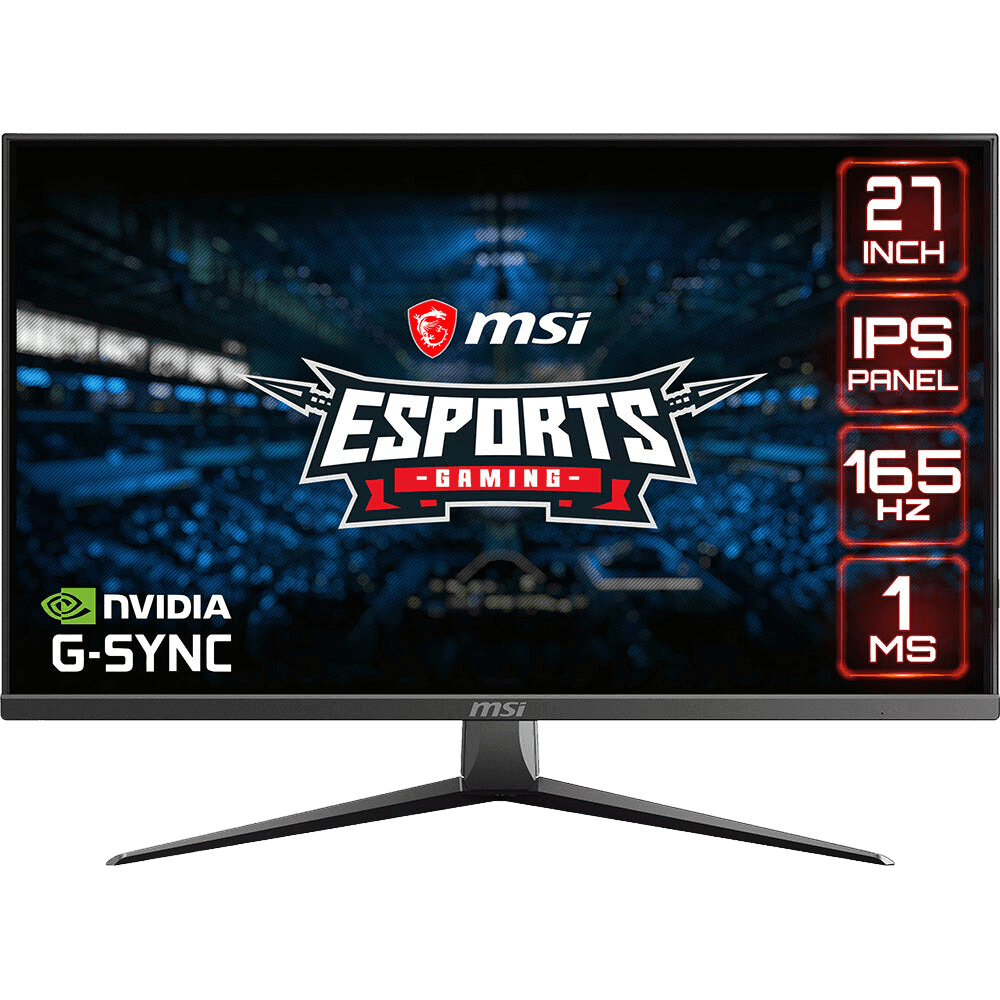
- MSI MAG2732: a 27-inch 1080p IPS monitor at 165 Hz.
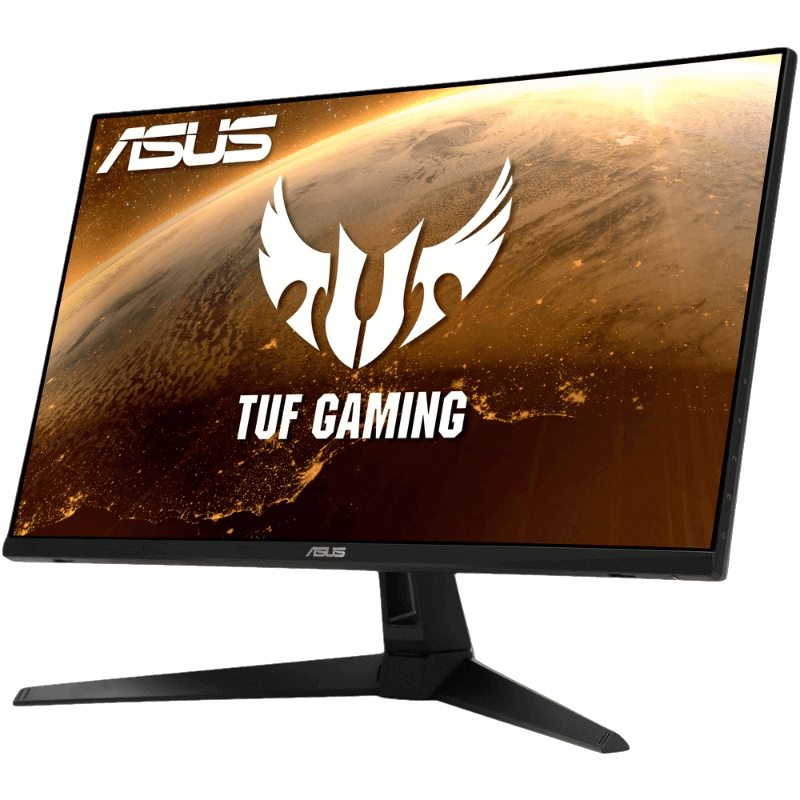
Our top all-rounder is the ASUS TUF VG27AQ1A, a 27-inch 1440p IPS screen at 170 Hz.
Computer monitor FAQ
What size computer monitor is best?
27 inches suits most desks and uses, especially at 1440p.
Is 144 Hz worth it?
Yes for gaming. Motion is much smoother than 60 Hz, even in everyday use.
IPS or VA for a computer monitor?
IPS for colour and viewing angles, VA for contrast and deep blacks.
Can I use a TV as a computer monitor?
Yes, especially for couch gaming. Choose a TV with HDMI 2.1, a game mode and 120 Hz support, and sit further back than you would from a desk monitor.
What is the best computer monitor for students?
A 24-inch or 27-inch IPS screen with a height-adjustable stand suits study and gaming without taking over a small desk.
Do I need a 4K computer monitor for work?
Not necessarily. A 27-inch 1440p screen gives plenty of space for documents, while 4K helps photo editors and anyone who wants extra-sharp text.
Choose your monitor
The best computer monitor balances size, resolution, refresh rate and panel type for the way you work and play. For most people, a 27-inch 1440p IPS screen at 144 Hz or more is ideal. Browse our gaming monitors, or contact us for help choosing.