Knowing how to check monitor refresh rate is essential after buying a new gaming screen. Many people plug in a 144 Hz or 170 Hz monitor and never notice that Windows is still running it at 60 Hz, which wastes the smoothness they paid for. Checking takes less than a minute, and fixing it is usually just as quick. This guide explains how to check monitor refresh rate in Windows 11 and 10, in NVIDIA and AMD software, in games and on consoles, and what to do if your screen is stuck at a lower rate.
North Gaming PCs stocks high refresh gaming monitors priced in Canadian dollars with a 2-year warranty, and this guide helps you get the most from them. If you are unsure which option suits you, our team is happy to compare specifications with you and suggest a setup that fits your space, budget and plans.
Why refresh rate matters
Refresh rate is how many times per second your monitor draws a new image. At 60 Hz, motion looks noticeably choppier than at 144 Hz, 165 Hz or 240 Hz. If your monitor supports a higher rate but Windows sends 60 Hz, you lose the main benefit of a gaming monitor, and motion looks no smoother than an old office screen. Learning how to check monitor refresh rate ensures you get what you paid for.
How to check monitor refresh rate in Windows 11
- Right-click the desktop and choose Display settings.
- Scroll down and select Advanced display.
- Choose your monitor at the top if you have more than one.
- Look at Choose a refresh rate, which shows the current setting.
- Open the drop-down and select the highest rate your monitor supports.
Windows 11 also offers Dynamic refresh rate on some screens, which switches between rates to save power.
How to check monitor refresh rate in Windows 10
- Right-click the desktop and choose Display settings.
- Click Advanced display settings.
- Select your monitor and look at Refresh rate.
- Click Display adapter properties for Display, open the Monitor tab and choose the highest Screen refresh rate.
How to check monitor refresh rate in NVIDIA software
Open the NVIDIA Control Panel, go to Display and select Change resolution. Choose your monitor, then check the Refresh rate drop-down. If the highest rate is missing, try a different cable or port. In the NVIDIA app, display settings show similar information.
How to check monitor refresh rate in AMD software
Open AMD Software: Adrenalin Edition, go to Settings, then Display. Your monitor’s details and refresh rate options appear there. Custom resolutions can be created if needed, but most monitors work with their standard modes.
Using the monitor’s on-screen display
Many gaming monitors show the current refresh rate in their on-screen menu, often under an information section. Some have a frame rate or refresh counter you can enable in a corner of the screen. This is the most reliable way to confirm what the monitor is actually receiving, especially with variable refresh rate active.
Online test tools
The TestUFO website shows moving test patterns and reports the refresh rate your browser detects. It is a quick way to confirm that changes have worked and to compare motion clarity between settings.
How to check monitor refresh rate in games
Games have their own display settings. Even if Windows runs at 170 Hz, a game may default to 60 Hz. Open the game’s video or display settings, set the refresh rate to the maximum and set the display mode to fullscreen or borderless as recommended. Also check any frame rate cap, which may limit you below the refresh rate.
How to check monitor refresh rate on a PS5
On PS5, go to Settings, Screen and Video, then Video Output Information. It shows the current resolution, refresh rate and HDR status. Turn on 120 Hz Output in Video Output settings if your monitor supports it. Our best monitor for PS5 guide covers console settings.
How to check monitor refresh rate on Xbox
On Xbox Series X|S, go to Settings, General, TV and display options, then Video fidelity and overscan or Video modes. Enable 120 Hz if your monitor supports it, and check Allow variable refresh rate.
Fixing a screen stuck at 60 Hz
If you cannot select the higher rate after learning how to check monitor refresh rate, try these steps:
- Use DisplayPort instead of HDMI, or a certified high-speed HDMI cable.
- Plug the cable into the graphics card, not the motherboard.
- Update your graphics driver.
- Check the monitor’s menu for an input or overclock setting that unlocks the full rate.
- Lower the resolution or colour depth temporarily to test bandwidth limits.
Refresh rate and variable refresh rate
With G-Sync or FreeSync active, the monitor’s live refresh rate follows your frame rate during games. That is normal. Windows still shows the maximum rate, and the on-screen display shows the changing rate. Our variable refresh rate guide explains how it works.
How to check monitor refresh rate with multiple screens
With two or more monitors, each screen has its own refresh rate. In Windows display settings, select each monitor at the top before checking its rate. Your gaming screen can run at 165 Hz while a second screen runs at 60 Hz. Make the faster screen your main display so games open on it.
Laptops and external monitors
Gaming laptops often have high refresh internal screens, but external monitors connected through HDMI or USB-C may default to 60 Hz. Learning how to check monitor refresh rate on each display ensures both run at full speed. Some USB-C ports and docks limit bandwidth, so connect directly to the laptop when possible.
How to check monitor refresh rate on Mac
On a Mac, open System Settings, select Displays, choose your monitor and look at the Refresh rate menu. Select the highest rate available.
Our picks
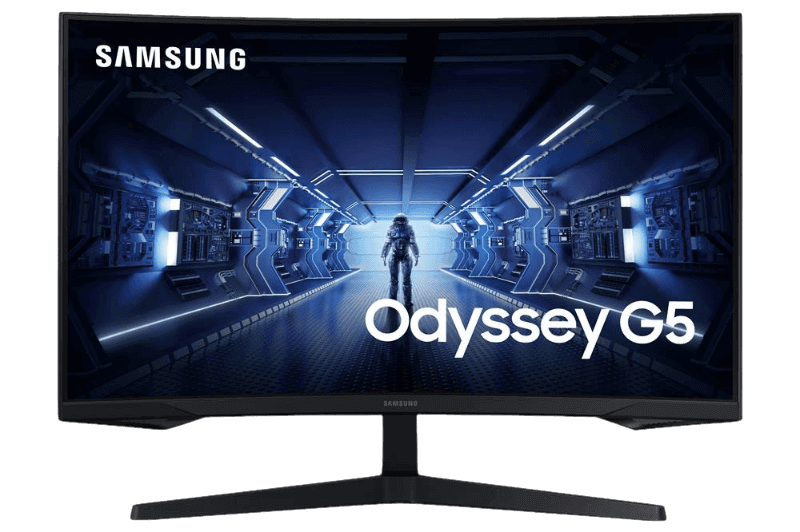
- Samsung Odyssey G5: a curved 1440p monitor at up to 165 Hz.
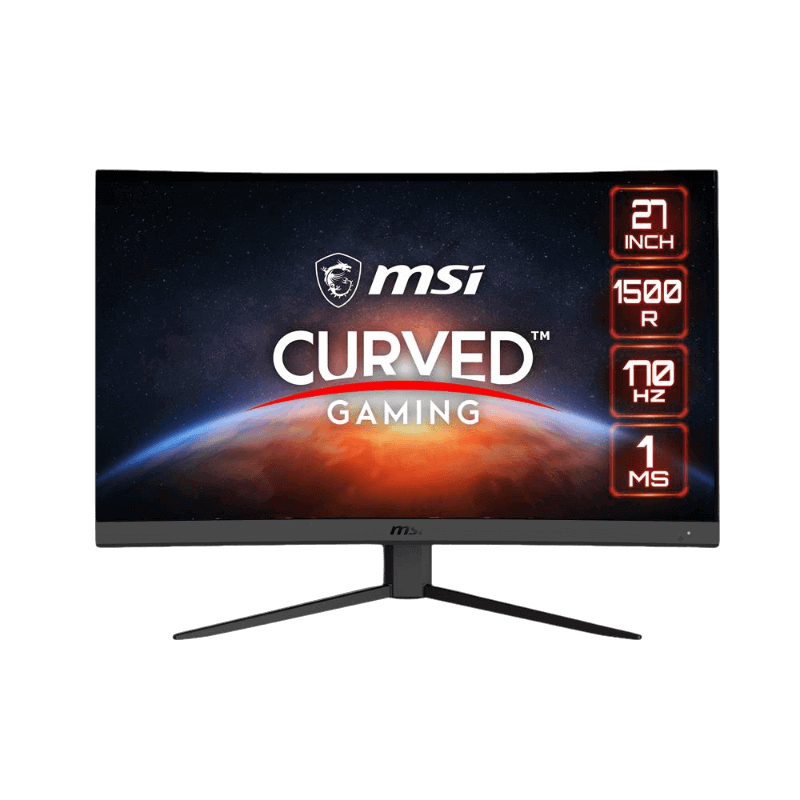
- MSI G27CQ4 E2: a curved 1440p monitor at up to 170 Hz.
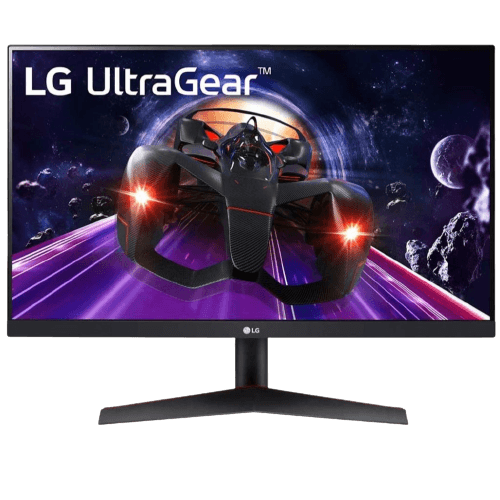
- LG 24GN60T-B: a 1080p IPS monitor at 144 Hz.
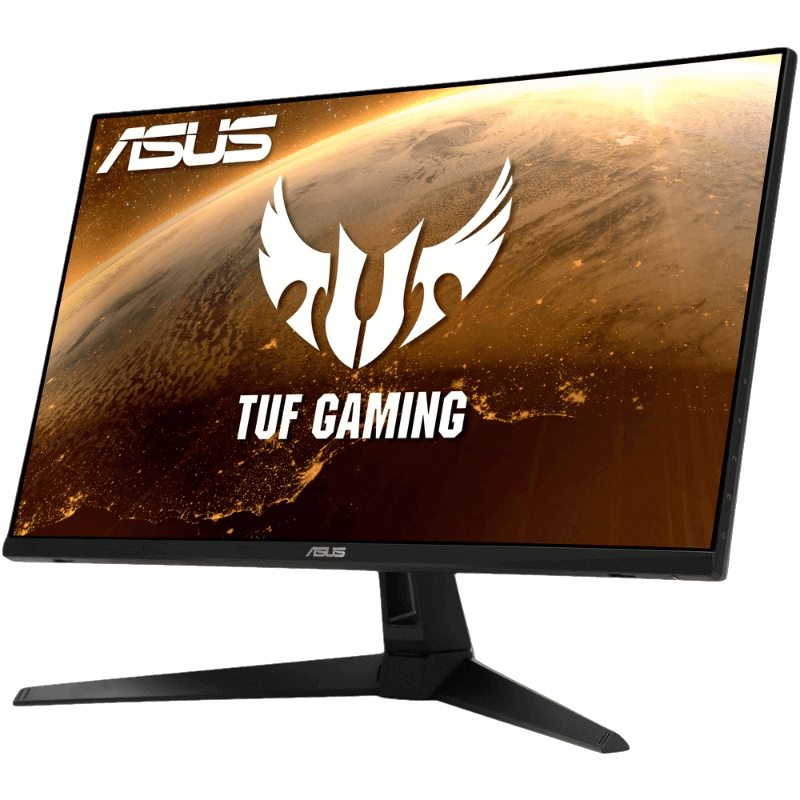
The ASUS TUF VG27AQ1A runs at up to 170 Hz over DisplayPort.
How to check monitor refresh rate FAQ
Why is my 144 Hz monitor running at 60 Hz?
Windows or the game is set to 60 Hz, or the cable limits bandwidth. Change the setting and use DisplayPort.
Do I need DisplayPort for high refresh rates?
It is the most reliable option on PC. Some monitors support high refresh over HDMI 2.0 or 2.1.
Does refresh rate change with G-Sync?
Yes. The live rate follows your frame rate in games while Windows shows the maximum.
How do I know the new setting worked?
Check the monitor’s on-screen display or a test site such as TestUFO.
Can a bad cable limit refresh rate?
Yes. Old or low-quality cables may not carry enough bandwidth.
Should I overclock my monitor?
Only if the maker offers an official overclock mode in the menu.
Does refresh rate affect battery life on laptops?
Yes. Higher refresh rates use more power, which is why Windows offers dynamic refresh rate on some laptops.
Get the full refresh rate
Now you know how to check monitor refresh rate in Windows, games and consoles, and how to fix a screen stuck at 60 Hz. A minute of checking unlocks the smoothness your monitor was built for. Browse our gaming monitors, or contact us if you need help.