A dual monitor setup is one of the best upgrades for gaming, streaming and work. One screen holds your game while the other shows chat, guides, music, stream controls or your browser. For work, two screens make research, writing and editing far quicker. Getting it right takes a little planning, though: screen sizes, positions, refresh rates and Windows settings all affect how comfortable the setup feels. This guide covers everything you need for a smooth dual monitor setup.
North Gaming PCs prices monitors and stands in Canadian dollars, with a 2-year warranty on everything we sell. Every price is shown in Canadian dollars, so there is no surprise currency conversion at checkout, and you can email our team whenever you need help choosing.
Why use two monitors?
A dual monitor setup removes the need to alt-tab constantly. Gamers keep Discord, a walkthrough or a stream dashboard open beside the game. Streamers watch chat and OBS without interrupting gameplay. Workers compare documents side by side, write on one screen and research on the other. Studies of office productivity have long shown time savings from extra screen space.
Choosing your screens
The easiest dual monitor setup uses two identical monitors, so colours, size and height match. That is ideal for work and symmetrical layouts. Many gamers instead pair a fast main screen with a cheaper second one, such as a 27-inch 1440p gaming monitor and a 24-inch 1080p display. That approach saves money while keeping gaming performance where it matters.
Layout options
- Main screen centred, second to the side: best for gamers. Your main screen sits straight ahead, and the second is angled beside it.
- Both screens centred at the bezel: best for work with identical screens used equally.
- Stacked: one screen above the other, useful on narrow desks and for streamers.
- Portrait second screen: a vertical monitor suits chat, code and long documents.
For gaming, always keep your main screen directly in front of you to avoid neck strain.
Mixed refresh rates and resolutions
Windows handles screens with different resolutions and refresh rates well today. You can run a 170 Hz gaming monitor beside a 60 Hz office screen. If you notice stutter on the main screen when video plays on the second one, update your graphics driver and turn on hardware-accelerated GPU scheduling in Windows settings.
Windows settings for a dual monitor setup
- Right-click the desktop and choose Display settings.
- Select Extend these displays.
- Drag the screen icons so they match their physical positions.
- Choose your main gaming screen and tick Make this my main display.
- Set the resolution and refresh rate for each screen.
- Under Taskbar settings, choose whether the taskbar shows on all displays.
Graphics card connections
Connect both monitors to the graphics card, not the motherboard. Use DisplayPort for the high refresh gaming screen and DisplayPort or HDMI for the second. Most modern cards have three or four outputs, so a dual monitor setup is easy on any recent GPU.
Stands and arms
Matching heights make a dual monitor setup comfortable. A dual monitor arm aligns both screens perfectly and frees desk space. If you use stands, place books or a riser under the lower screen so the top edges line up.
Desk space and distance
Two 27-inch screens need about 125 to 140 cm of desk width. A 27-inch plus 24-inch pair fits in about 115 cm. Keep both screens at a similar distance, about an arm’s length, and angle the second screen towards you.
Dual monitor setup for streaming
Streamers usually put the game on the main screen and OBS, chat and alerts on the second. A vertical second screen shows more chat messages. Set OBS to capture only the main display to avoid showing private information on stream.
Dual monitor setup for sim racing
For sim racing, a second screen beside the main display is handy for telemetry, timing apps and SimHub dashboards. For a wider field of view in the sim itself, triple monitors or an ultrawide monitor work better than two screens, because the join between two monitors sits right in the middle of your view.
Performance impact
Running a second screen uses a little graphics memory and processing, especially if it plays video. On modern PCs the impact is small. If your frame rate drops, close video on the second screen while gaming or lower its refresh rate.
Dual monitor setup for work from home
For remote work, a dual monitor setup speeds up video calls, email and documents. Keep the camera on the main screen so you look at it naturally during calls. Put your messaging apps and calendar on the second screen. Windows Snap Layouts make it easy to arrange several windows across both displays.
Dual monitor setup with a laptop
A laptop can drive one or two external monitors through HDMI, USB-C or a docking station. Use the laptop screen as a second display, or close it and run two external monitors. A USB-C dock with power delivery charges the laptop and connects everything with one cable, which makes a laptop dual monitor setup tidy and quick.
Colour matching two screens
If your screens are different models, colours may look slightly different. Set both to the sRGB mode, match brightness by eye and adjust colour temperature to a similar setting. A hardware calibrator gives the best match if you edit photos or video.
Cable management
Two monitors mean more cables. Route display and power cables together through an under-desk tray, use Velcro ties and leave slack for adjusting the screens. A tidy dual monitor setup is easier to clean and looks far better.
Our picks
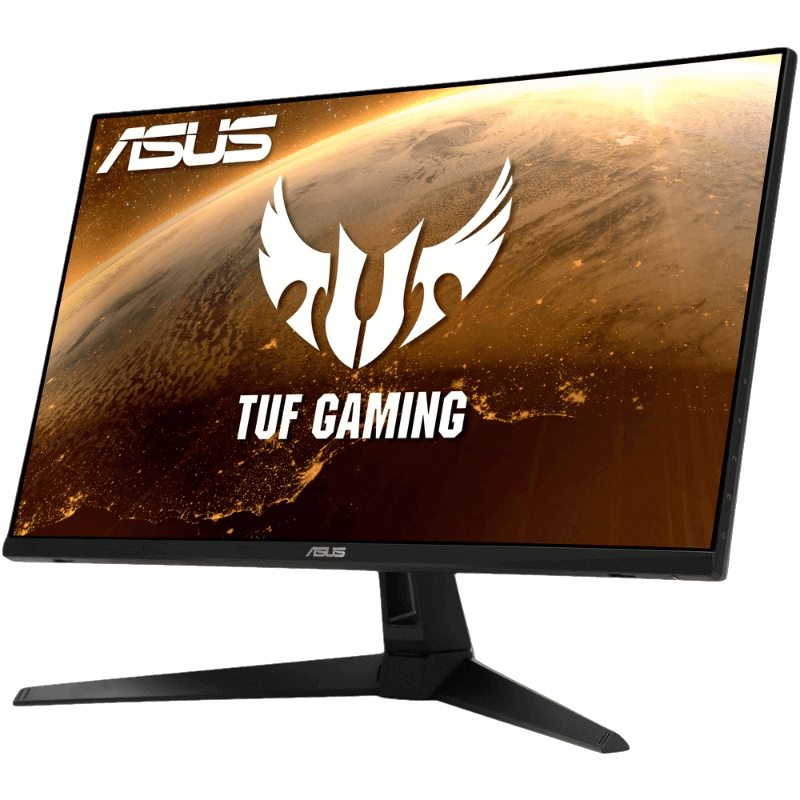
- ASUS TUF 1440p monitor: a fast 27-inch main gaming screen at 170 Hz.
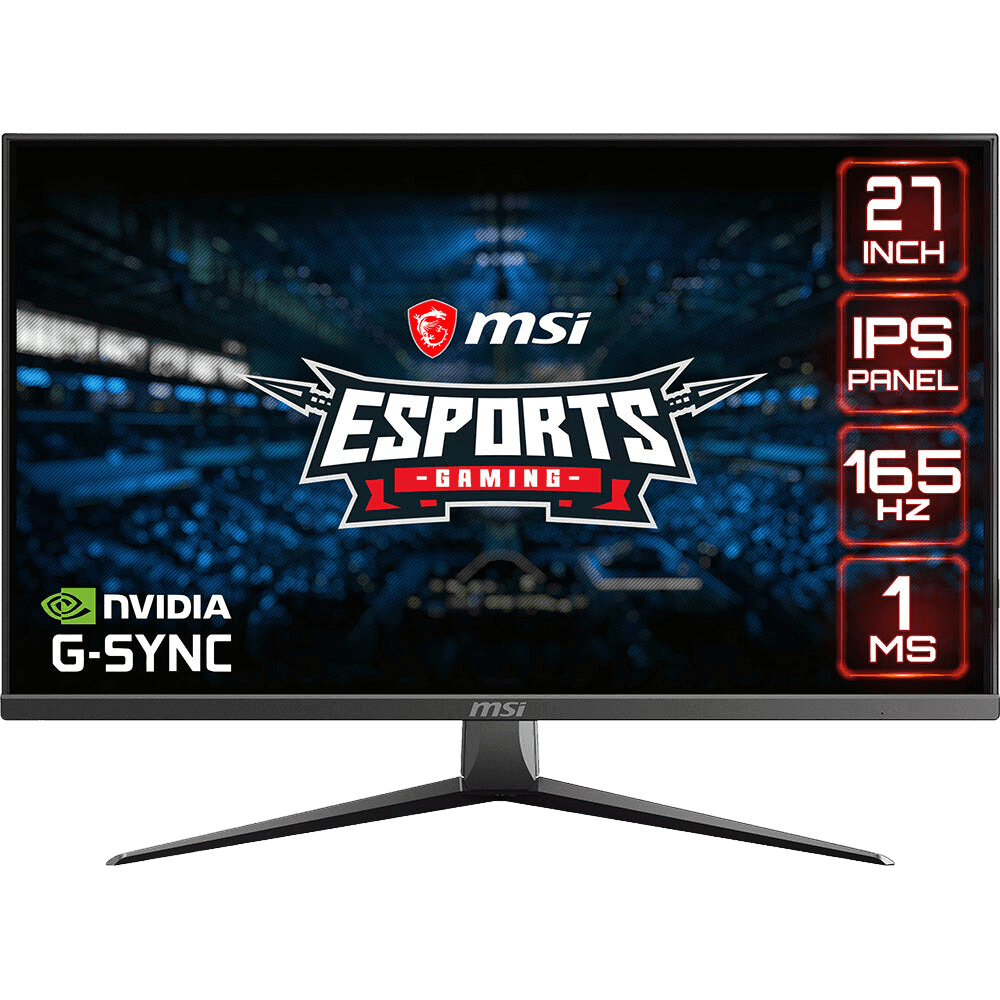
- MSI MAG2732: a 27-inch 1080p IPS screen that works well as a second display.
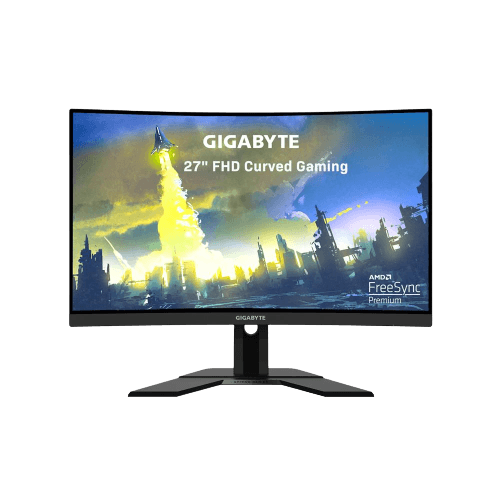
- Gigabyte 27-inch curved monitor: an affordable 165 Hz screen.
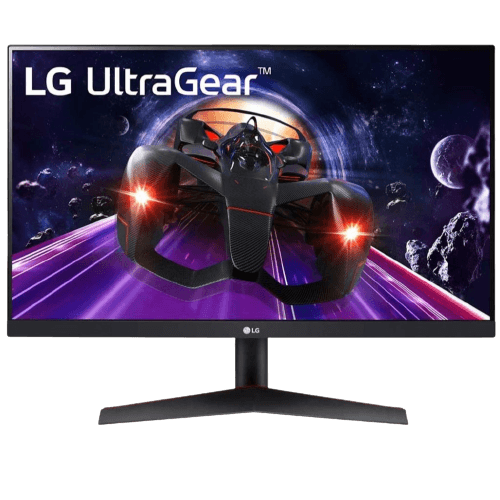
The LG 24-inch 144 Hz monitor makes an excellent second screen beside a 27-inch main display.
Dual monitor setup FAQ
Does a second monitor lower FPS?
Only slightly, mostly when it plays video. The impact on modern PCs is small.
Can I mix different monitors?
Yes. Windows handles different sizes, resolutions and refresh rates.
Which screen should be my main display?
Your fastest gaming monitor, placed directly in front of you.
Can I game across two monitors?
It is possible, but the bezel sits in the middle of your view. An ultrawide or triple setup works better for that.
Do I need a special graphics card for two monitors?
No. Almost every modern graphics card supports three or four displays.
How do I move a game to my second screen?
Set the screen you want as the main display in Windows, or use the game’s display settings to choose the monitor. Pressing Windows + Shift + an arrow key also moves windows between screens.
What size desk do I need for a dual monitor setup?
About 115 to 140 cm wide for two 24 to 27-inch screens, and at least 70 cm deep.
Set up your two screens
A dual monitor setup makes gaming, streaming and work easier. Keep your main screen centred, match heights and use Windows display settings to arrange everything correctly. Browse our gaming monitors and monitor stands, check Microsoft’s multiple display guide, or contact us for help.