Variable refresh rate is one of the most important features for smooth gaming, yet many players never switch it on. VRR lets your monitor change its refresh rate on the fly to match the frame rate your graphics card produces. The result is no screen tearing, much less stutter and lower input lag than traditional V-Sync. This guide explains how variable refresh rate works, the differences between G-Sync, FreeSync and HDMI VRR, console support and the best settings to use.
Every gaming monitor North Gaming PCs stocks supports adaptive sync, and all are priced in Canadian dollars with a 2-year warranty. Every price is shown in Canadian dollars, so there is no surprise currency conversion at checkout, and you can email our team whenever you need help choosing.
The problem variable refresh rate solves
A traditional monitor refreshes at a fixed rate, such as 144 times per second. Your graphics card, however, produces frames at a constantly changing rate. When a new frame arrives in the middle of a refresh, the screen shows parts of two frames at once, creating a visible tear. V-Sync fixes tearing by making the graphics card wait, but that adds input lag and stutter when frame rates drop.
How variable refresh rate works
With variable refresh rate, the monitor waits for each new frame and refreshes as soon as it arrives. If your game runs at 97 frames per second, the monitor refreshes 97 times per second. Tearing disappears, and frame rate dips feel much smoother because each frame is shown as soon as it is ready.
G-Sync, FreeSync and HDMI VRR
There are three main variable refresh rate standards:
- AMD FreeSync: based on the VESA Adaptive-Sync standard. Works over DisplayPort and many HDMI connections. FreeSync Premium adds low framerate compensation.
- NVIDIA G-Sync: NVIDIA’s version. G-Sync Compatible monitors use Adaptive-Sync and are tested by NVIDIA; some premium monitors include a dedicated G-Sync module.
- HDMI 2.1 VRR: the HDMI standard, used by the PS5, Xbox Series X|S and many TVs.
Modern NVIDIA cards work with G-Sync Compatible FreeSync monitors over DisplayPort, so most gaming monitors work with both brands.
VRR range and low framerate compensation
Every variable refresh rate monitor has a range, such as 48 to 170 Hz. Within that range, VRR works perfectly. If the frame rate drops below the minimum, low framerate compensation (LFC) shows each frame two or three times to keep the refresh rate in range. FreeSync Premium and G-Sync Compatible monitors usually support LFC.
Variable refresh rate on consoles
The PS5 supports VRR over HDMI 2.1 in supported games, and the Xbox Series X|S supports both HDMI VRR and FreeSync. To use it, your monitor or TV must support HDMI 2.1 VRR, or FreeSync over HDMI for Xbox. Our best monitor for PS5 and best monitor for Xbox Series X guides cover console settings.
Variable refresh rate on or off?
For almost every game, leave variable refresh rate on. It removes tearing and reduces stutter with very little downside. The rare exceptions are some older games with frame pacing issues and specific esports setups where players prefer uncapped frame rates far above the refresh rate. Even then, most competitive players keep VRR on with a frame cap.
Best settings for NVIDIA cards
- Connect the monitor with DisplayPort.
- Enable Adaptive-Sync or FreeSync in the monitor’s menu.
- Open the NVIDIA app or Control Panel, go to Set up G-Sync and enable it.
- Turn V-Sync on in the driver and off in games.
- Cap the frame rate a few frames below the maximum refresh rate, or use NVIDIA Reflex, which caps automatically in supported games.
Best settings for AMD cards
- Enable FreeSync in the monitor’s menu.
- In AMD Software, turn on AMD FreeSync for the display.
- Use Radeon Chill or an in-game limiter to cap frames just below the maximum refresh rate.
- Enable Radeon Anti-Lag in competitive games.
How to tell if VRR is working
Many monitors show the current refresh rate in an on-screen display or info menu. With variable refresh rate working, the number moves with your frame rate in games. NVIDIA’s Pendulum demo and similar test tools also show tearing clearly when VRR is off. Our guide on how to check monitor refresh rate explains other ways to confirm your settings.
Flicker on some monitors
Some VA and OLED monitors show slight brightness flicker when frame rates swing widely with VRR, especially in loading screens. Capping the frame rate and keeping frame times steady reduces it. Monitor firmware updates sometimes improve VRR behaviour too.
Variable refresh rate for sim racing and flight sim
Simulators often have uneven frame rates, especially in busy race starts or over dense cities. Variable refresh rate keeps motion smooth during those dips, which makes steering and braking feel more consistent. It is one of the easiest ways to improve a sim rig’s visual smoothness.
Common variable refresh rate mistakes
The most common mistake is enabling VRR in the graphics driver but not in the monitor’s own menu, or the reverse. Another is using an HDMI cable or port that does not support VRR on a monitor where only DisplayPort supports it. A third is running uncapped frame rates far above the refresh rate, which pushes the game outside the VRR range and brings back tearing or extra latency. Check all three when setting up.
Does VRR help at low frame rates?
Yes, and that is where it helps most. When a demanding game dips from 75 to 55 frames per second, variable refresh rate keeps motion smooth instead of showing judder or tearing. That makes mid-range PCs feel noticeably better in heavy games.
Variable refresh rate on TVs
Many modern TVs support HDMI 2.1 VRR and G-Sync Compatible modes, making them great for couch PC and console gaming. Enable the TV’s game mode and VRR setting, and check that the HDMI port supports the full bandwidth.
Our picks
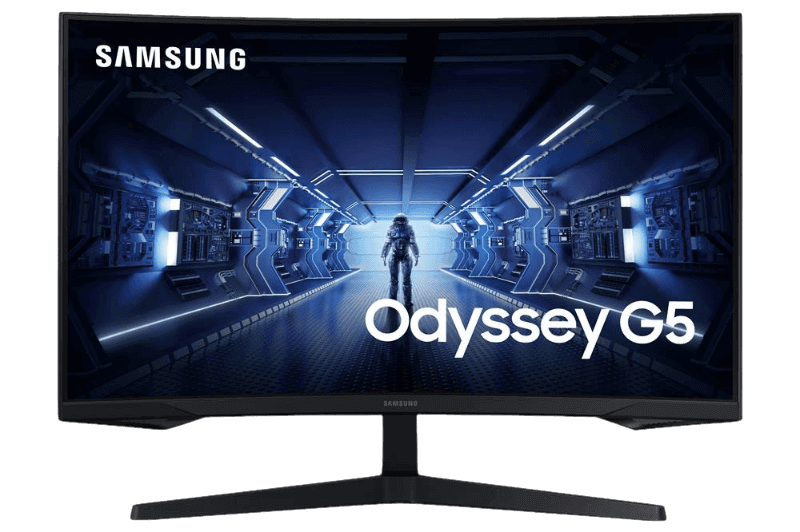
- Samsung Odyssey G5: a curved 1440p monitor with adaptive sync at 165 Hz.
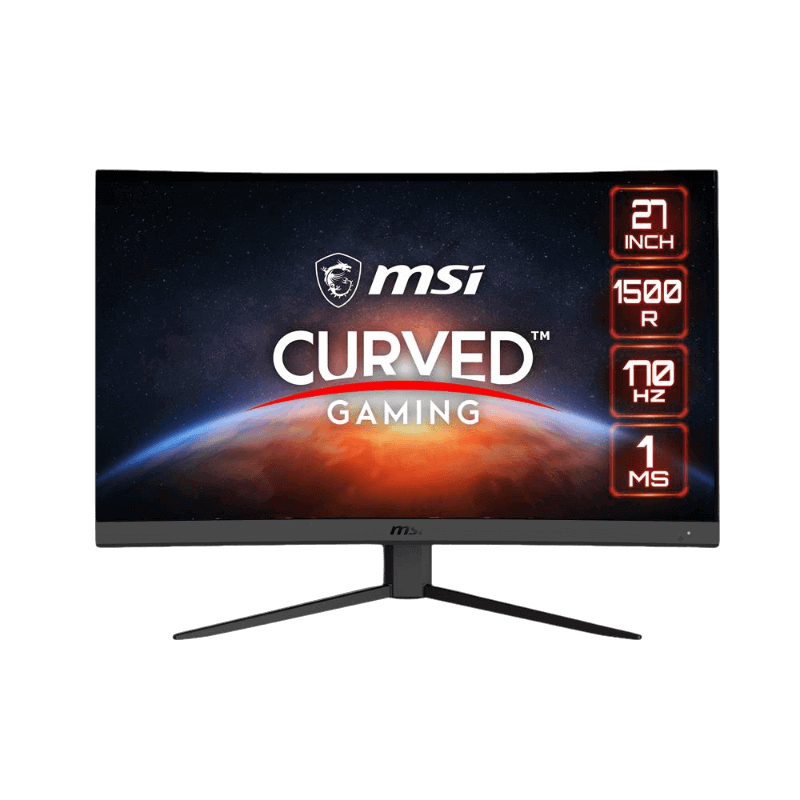
- MSI G27CQ4 E2: a curved 1440p monitor with adaptive sync at 170 Hz.
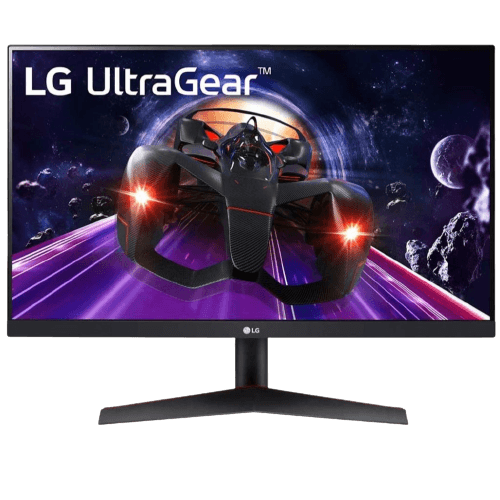
- LG 24GN60T-B: a 1080p IPS monitor with adaptive sync at 144 Hz.
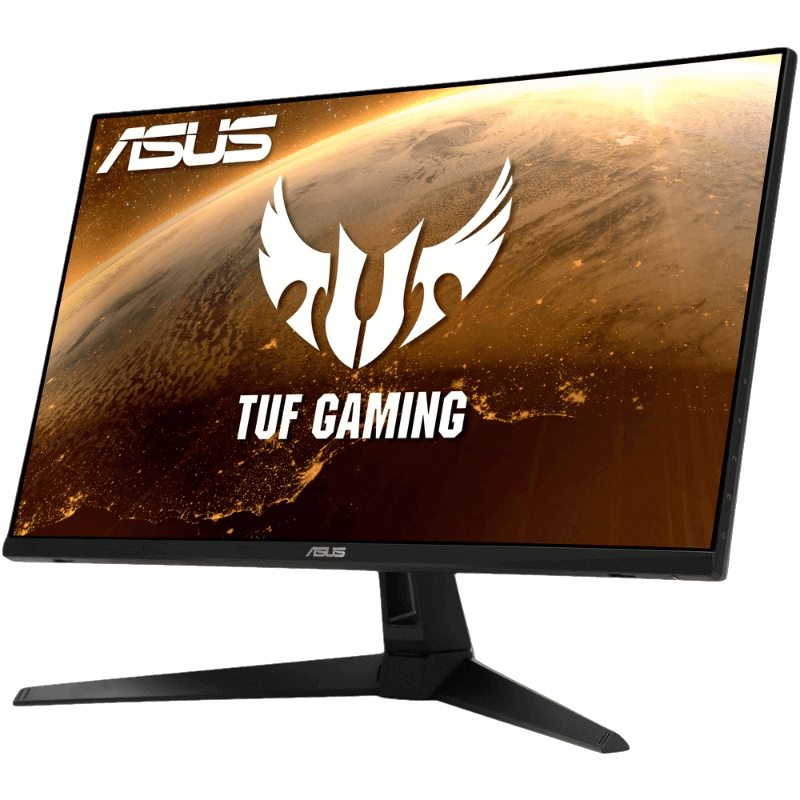
Our ASUS TUF VG27AQ1A supports FreeSync Premium and is G-Sync Compatible.
Variable refresh rate FAQ
Should I turn variable refresh rate on?
Yes for almost every game. It removes tearing and reduces stutter.
Does VRR add input lag?
No. It usually lowers input lag compared with V-Sync.
Does FreeSync work with NVIDIA cards?
Yes, on G-Sync Compatible monitors over DisplayPort.
Do I need HDMI 2.1 for console VRR?
For PS5, yes. Xbox also supports FreeSync over HDMI on compatible monitors.
What is LFC?
Low framerate compensation keeps VRR working when frame rates drop below the monitor’s minimum refresh rate.
Why do I see flicker with VRR?
Some panels flicker slightly during big frame rate swings. Capping frames usually helps.
Does variable refresh rate work with HDR?
Yes. Most modern monitors and TVs support VRR and HDR at the same time.
Turn it on
Variable refresh rate is a simple setting that makes nearly every game look smoother. Enable it on your monitor and in your graphics driver, cap frames just below your refresh rate and enjoy tear-free play. Browse our gaming monitors, learn about the standard from VESA, or contact us for help.