An M.2 SSD is the small, cable-free drive that has become the standard storage for gaming PCs, laptops and even the PlayStation 5. It plugs straight into the motherboard, takes up almost no space and, in its NVMe form, is many times faster than older drives. The catch is that the name M.2 describes the shape, not the speed, so two drives that look identical can perform very differently. This guide explains sizes, keys, interfaces and installation, so you can pick the right M.2 SSD the first time.
North Gaming PCs sells NVMe drives in Canadian dollars, each covered by our 2-year warranty, and we can install storage in any PC we build. If you are unsure which option suits you, our team is happy to compare specifications with you and suggest a setup that fits your space, budget and plans.
What is an M.2 SSD?
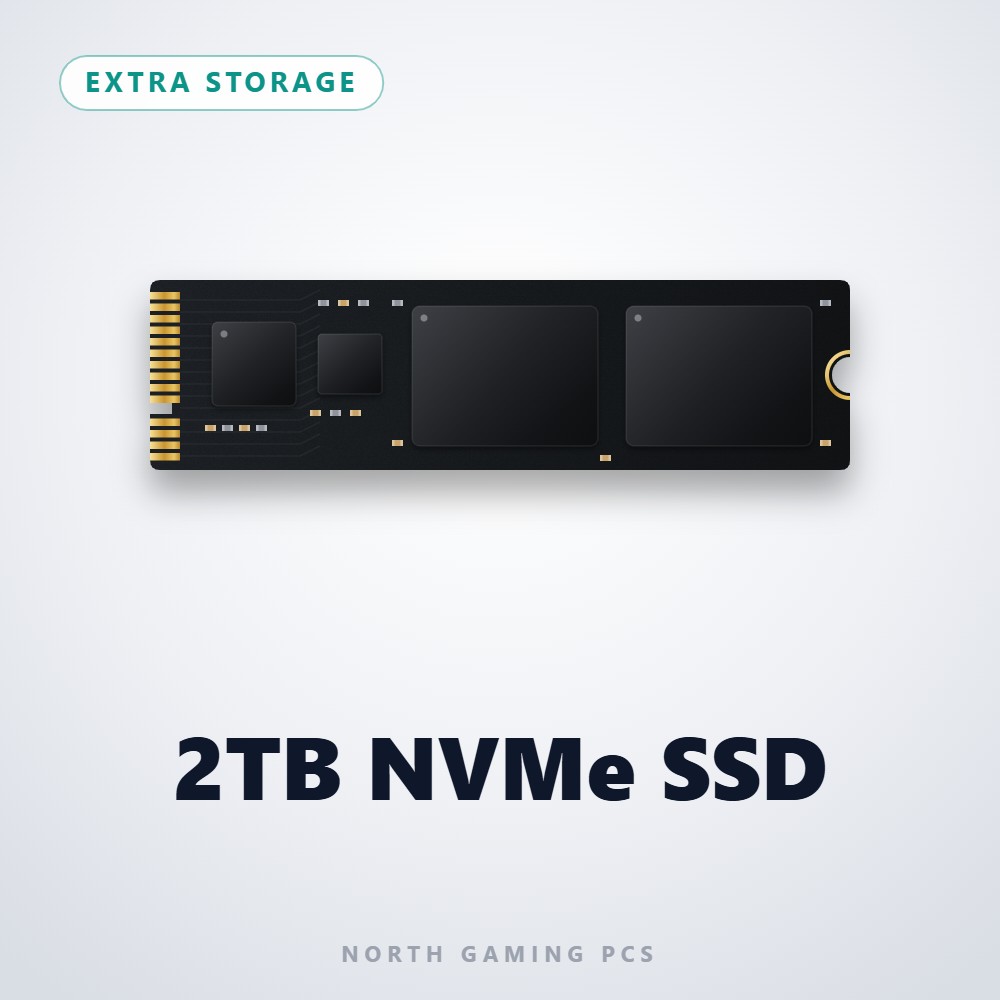
M.2 is a form factor, a standard for the size and connector of a small expansion card. An M.2 SSD is a solid-state drive built on that card. Instead of a 2.5-inch box with data and power cables, the drive is a thin stick of circuit board that slides into a slot on the motherboard and is held down with a screw or latch.
Inside, an M.2 SSD uses one of two interfaces. NVMe drives talk to the processor over PCIe lanes and are very fast. SATA drives use the older SATA protocol and top out at roughly 550 MB/s. Both can share the same physical shape, which is why reading the label matters.
NVMe vs SATA M.2
NVMe is the right choice for nearly every modern gaming PC. A PCIe 4.0 NVMe drive reads at up to around 7,000 MB/s, more than ten times faster than SATA. Loading screens are shorter, game installs are quicker and large files open almost instantly.
SATA M.2 drives still exist, mostly in older laptops and budget systems whose slots only support SATA. If your motherboard manual says a slot supports PCIe or NVMe, buy an NVMe M.2 SSD. If it only lists SATA, an NVMe drive will not work in that slot.
M.2 sizes explained
The four or five-digit number on an M.2 SSD describes its size in millimetres. The first two digits are the width and the rest is the length:
- 2280: 22 mm wide and 80 mm long. The standard size for desktop PCs and the PS5.
- 2242: 42 mm long, used in some compact laptops and mini PCs.
- 2230: 30 mm long, used in handheld PCs such as the Steam Deck and ROG Ally.
- 22110: 110 mm long, mostly found in servers and workstations.
Most desktop motherboards have 2280 slots, and many can also hold shorter drives using a movable standoff.
Keys and slot types
The notches in the connector are called keys. An NVMe M.2 SSD uses an M key, with one notch near the right side. Many SATA M.2 drives use a B+M key with two notches. A slot shaped for M-key drives may still only support SATA or only support PCIe, so always check the motherboard manual rather than judging by shape alone.
PCIe generations and speed
NVMe drives come in several PCIe generations:
- PCIe 3.0: up to about 3,500 MB/s. Fine for older systems.
- PCIe 4.0: up to about 7,000 MB/s. The sweet spot for gaming today.
- PCIe 5.0: 10,000 to 14,000 MB/s. Very fast, but hotter and more expensive.
A faster M.2 SSD works in an older slot, but it runs at that slot’s speed. The NVM Express organisation maintains the NVMe standard if you want the technical background.
Do you need a heatsink?
PCIe 4.0 drives can get warm during long transfers and in hot cases. Many motherboards include M.2 heatsinks, and these are usually all you need. PCIe 5.0 drives run much hotter and often ship with large heatsinks or require the motherboard’s cooler. A drive that overheats slows itself down to protect its flash memory, so good cooling keeps speeds consistent.
How to install an M.2 SSD in a PC
- Check your motherboard manual for free M.2 slots and which interfaces each one supports.
- Shut down the PC, unplug it and discharge static by touching the bare metal case.
- Remove the slot heatsink if fitted, and set the standoff for your drive’s length.
- Insert the M.2 SSD at a slight angle, press it flat and secure it with the screw or latch.
- Peel any protective film off the heatsink thermal pad, then refit the heatsink.
- Boot into Windows, open Disk Management and initialise and format the new drive.
Some motherboard M.2 slots share bandwidth with SATA ports or the graphics card slot. The manual explains which ports turn off when a slot is used.
Using an M.2 SSD in a PS5
The PlayStation 5 has an expansion slot for one M.2 SSD. Sony requires a PCIe 4.0 NVMe drive, recommends read speeds of 5,500 MB/s or more and supports capacities up to 8TB. A heatsink is required, either built onto the drive or added separately, and it must fit within the slot’s height limit. Installation takes a few minutes with a screwdriver, and the PS5 formats the drive and checks its speed automatically.
How much capacity should you choose?
Games keep growing, so capacity matters as much as speed. A 1TB M.2 SSD fits Windows and a few big games. A 2TB drive is the sweet spot for most players, and 4TB or more suits sim racers and flight simmers with large libraries of tracks, cars, aircraft and scenery. Read our SSD buying guide for a deeper look at capacities and specs.
M.2 SSD for laptops and handheld PCs
Laptops and handheld gaming PCs are a popular place to upgrade storage. Many gaming laptops have a second M.2 slot, which makes adding space easy. Handhelds such as the Steam Deck and ROG Ally use the short 2230 size, so a standard 2280 drive will not fit. Always check the exact length your device supports, and look for single-sided drives in thin laptops where clearance is tight.
Our M.2 SSD picks
These NVMe drives are available from North Gaming PCs, priced in Canadian dollars:
- 1TB NVMe SSD: a fast boot drive or a second drive for your main games.
- 4TB NVMe SSD: plenty of room for big simulators and mods.
- 8TB NVMe SSD: a huge library on a single fast drive.
M.2 SSD FAQ
Are all M.2 SSDs NVMe?
No. Some M.2 drives use SATA. Check the label and your motherboard manual before buying.
Can I use a PCIe 4.0 M.2 SSD in a PCIe 3.0 slot?
Yes. It works, but it runs at PCIe 3.0 speed.
Does an M.2 SSD need cables?
No. It draws power and data from the slot itself, which keeps the case tidy.
Will an M.2 SSD fit my laptop?
Check the laptop’s slot size. Many use 2280, while thinner models and handhelds often use 2230 or 2242.
Choose your next M.2 SSD
For a gaming PC, a PCIe 4.0 NVMe M.2 SSD in the 2280 size is the safe, fast choice. Pick 2TB or more if you keep a big library, add a heatsink if your board has one, and check the manual for the right slot. Browse our storage drives, add storage to a configurable gaming PC, or contact us for help.