An SSD is the single upgrade that makes a gaming PC feel fast every day. Windows starts in seconds, games load before you have finished your drink, and big open worlds stream in without the hitching you get from an old hard drive. This guide explains what solid-state storage is, which type to buy, how much space you need and how to fit a new drive, so you can choose with confidence.
Every price on North Gaming PCs is shown in Canadian dollars, and every drive we sell is covered by our 2-year warranty.
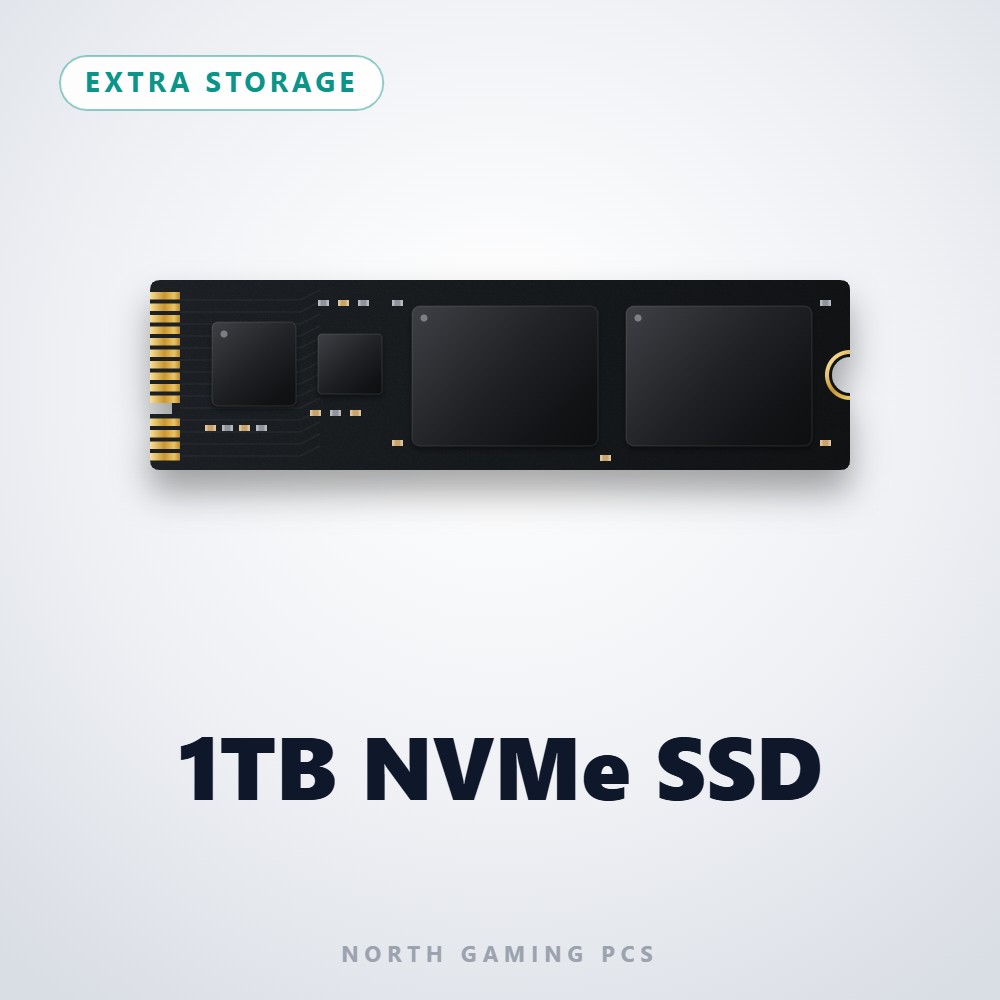
What is an SSD?
A solid-state drive stores data on flash memory chips instead of spinning platters. Because there are no moving parts, it can find and read files almost instantly, makes no noise and copes with knocks far better than a mechanical hard drive. It also uses less power and gives off less heat, which helps in compact cases.
The difference shows up most when you load something. A typical hard drive reads at around 100 to 200 MB/s, while a modern NVMe drive reads at several thousand MB/s. Random reads, the small scattered requests that games make constantly, improve even more. That is why menus, maps, respawns and fast travel feel so much snappier once your games live on flash storage.
The main types of drive
Not every solid-state drive is the same. The connector, the interface and the PCIe generation decide how fast a drive can go and whether it fits your motherboard.
SATA drives
A SATA SSD uses the same interface as a hard drive and tops out at roughly 550 MB/s. That is still a huge step up from spinning disks, and it is the right choice for an older PC that has no M.2 slot. Most come in the 2.5-inch laptop-drive shape and connect with a SATA data cable and a power cable from the power supply.
NVMe drives
An NVMe drive talks to the processor over PCIe lanes instead of the older SATA bus. PCIe 3.0 models reach about 3,500 MB/s, PCIe 4.0 models about 7,000 MB/s, and PCIe 5.0 models can pass 12,000 MB/s. The NVM Express protocol was designed for flash memory from the start, so latency is far lower too. Most new gaming PCs use a PCIe 4.0 NVMe SSD as the main drive because it balances speed, heat and price.
M.2 is a shape, not a speed
M.2 describes the small stick-shaped form factor that plugs straight into the motherboard, with no cables at all. An M.2 drive can be SATA or NVMe, so check the label before you buy. Our guide to the M.2 SSD explains keying, lengths and slot types in more detail.
How much storage do you need?
Modern games are large. Many AAA titles need 100 GB or more, and simulators such as Microsoft Flight Simulator grow well beyond their install size once you add scenery, aircraft and updates. Patches arrive constantly too, and each one needs free space to unpack. Use these rough targets when you choose a capacity:
- 1TB: enough for Windows, your apps and a handful of big games installed at once.
- 2TB: the sweet spot for most players who like to keep a library ready to play.
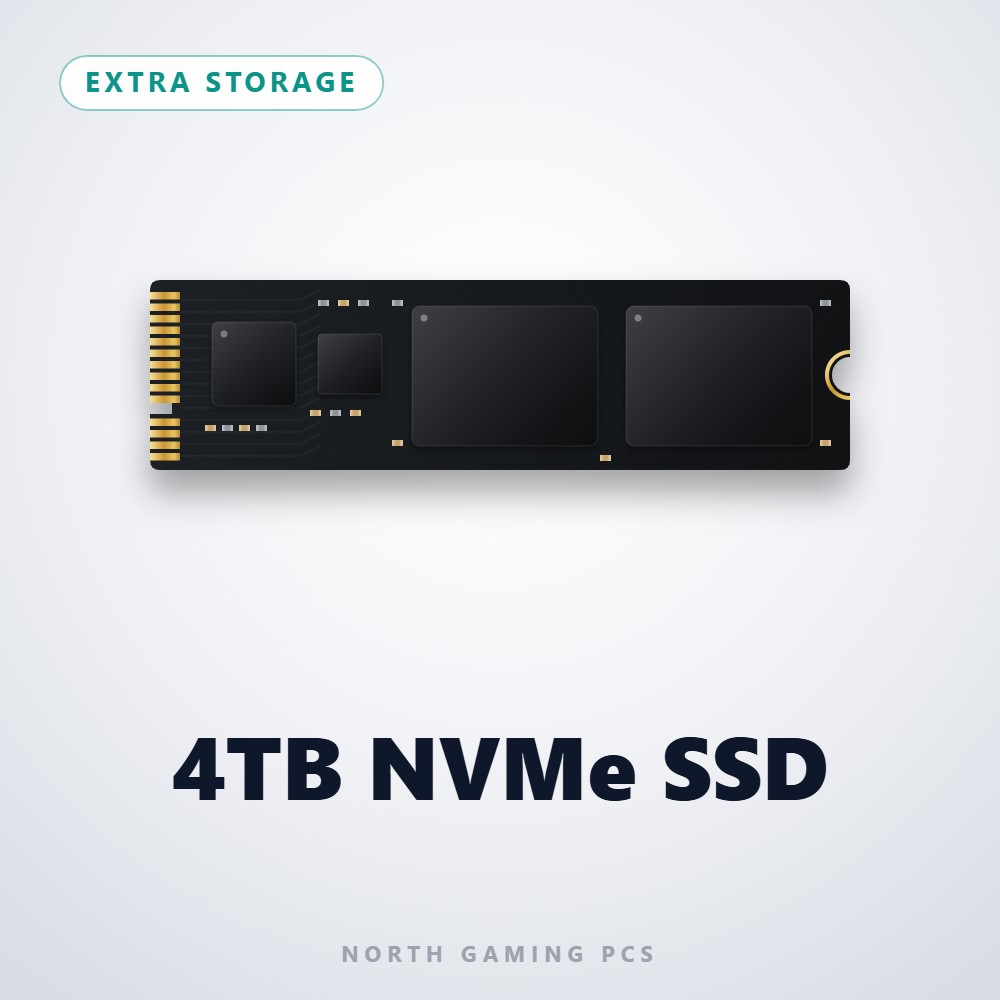
- 4TB or more: ideal for sim racers and flight simmers with lots of content, mods and liveries.
A simple layout works well for most people: a fast NVMe SSD for Windows and the games you play now, plus a second drive for everything else. If you are thinking about a hard drive for bulk storage, read our SSD vs HDD comparison first, because some games now list solid-state storage as a requirement.
Does drive speed matter for gaming?
Yes, but with diminishing returns. Moving from a hard drive to any solid-state drive is the big jump. Moving from SATA to NVMe shortens loading screens again, especially in newer games built around fast storage and Microsoft DirectStorage. Beyond PCIe 4.0, the gains in games are small today, while PCIe 5.0 drives cost more and run hotter.
When you compare one model with another, these specs matter more than the headline number on the box:
- Sequential read speed: 5,000 MB/s or more is a good target for a PCIe 4.0 drive.
- DRAM cache or HMB support: helps a drive keep its speed as it fills up.
- Endurance (TBW): a higher rating means the drive is designed to write more data over its life.
- Cooling: a heatsink helps PCIe 4.0 drives and is close to essential for PCIe 5.0.
- Warranty length: a long warranty is a good sign the maker trusts its flash memory.
Storage tips for sim racing and flight sim
Simulators lean on storage more than most games. Track and scenery data is streamed constantly, and add-on cars, aircraft and liveries pile up quickly. Installing your sim on an NVMe SSD shortens the wait between sessions and reduces stutter when new scenery loads at speed, for example when you fly low over a dense city.
If you have invested in a direct drive wheelbase or a full flight cockpit, the PC behind it deserves the same care. A roomy drive also makes it painless to keep several sims installed, so you can jump between iRacing, Assetto Corsa and your favourite flight sim without uninstalling anything. Keep replays and recordings on a second drive so your main one stays fast.
How to install a new drive
- Check your motherboard manual for free M.2 slots and the PCIe generation each slot supports.
- Shut down, unplug the PC and touch a bare metal part of the case to discharge static.
- Remove the slot heatsink if there is one, insert the drive at a slight angle and secure it with the screw or latch.
- Start Windows, open Disk Management and initialise the new disk, then create and format a volume.
- Move your game folders in your launcher settings, or clone your old drive if the new SSD will become your boot drive.
Not comfortable opening up a PC? Every configurable gaming PC we build lets you choose its storage before it ships, so the drives arrive installed, formatted and ready.
Common buying mistakes
A few easy mistakes can leave you with the wrong drive. Buying an NVMe model for a PC that only has SATA ports is the most common, so check your motherboard first. Filling a drive to the brim is another, because most flash storage slows down when it is almost full; leave 10 to 20 percent free.
Do not pay extra for PCIe 5.0 speed if your motherboard only has PCIe 4.0 slots. The drive will work, but it will run at PCIe 4.0 speed, so a good PCIe 4.0 model is the better value. Finally, be wary of very cheap no-name drives with no stated endurance or warranty.
Our SSD picks
These drives and PCs are available from North Gaming PCs, priced in Canadian dollars:
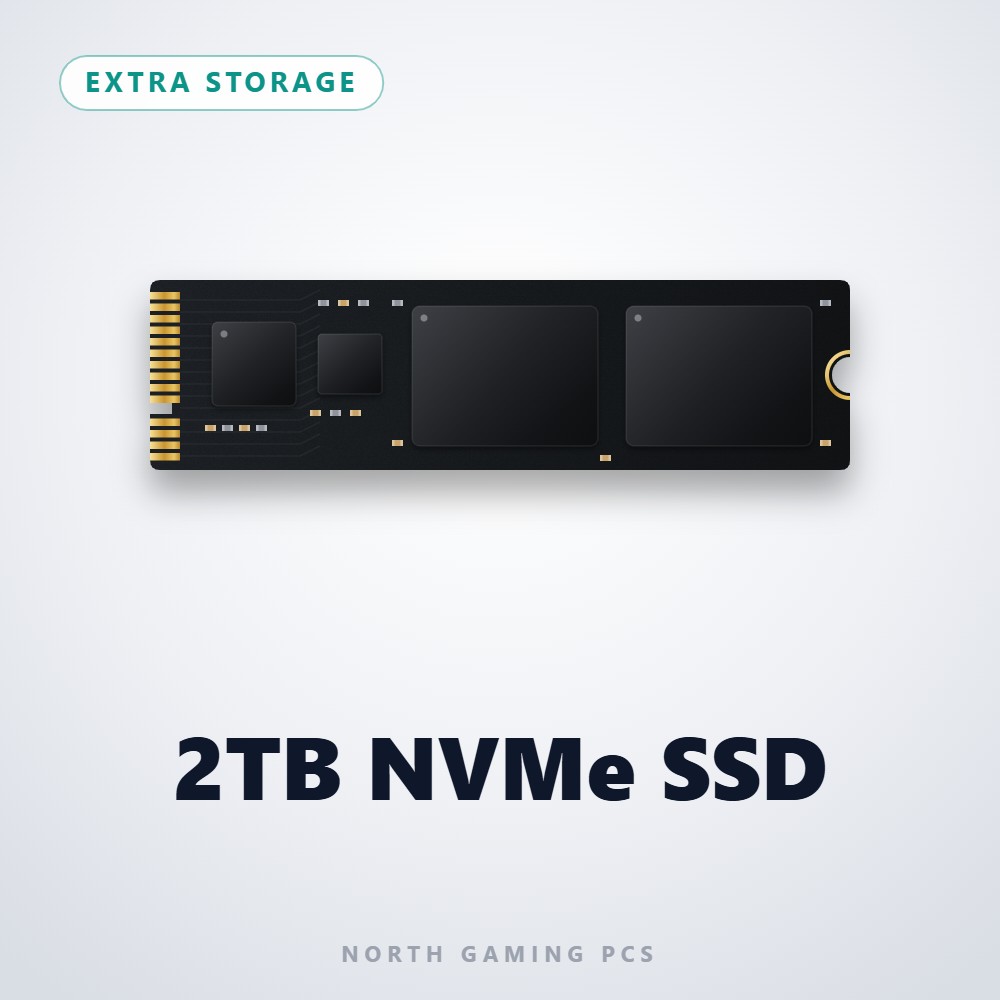
- 2TB NVMe SSD: the best all-round size for a growing game library.
- 4TB NVMe SSD: room for big sims, mods and years of installs.
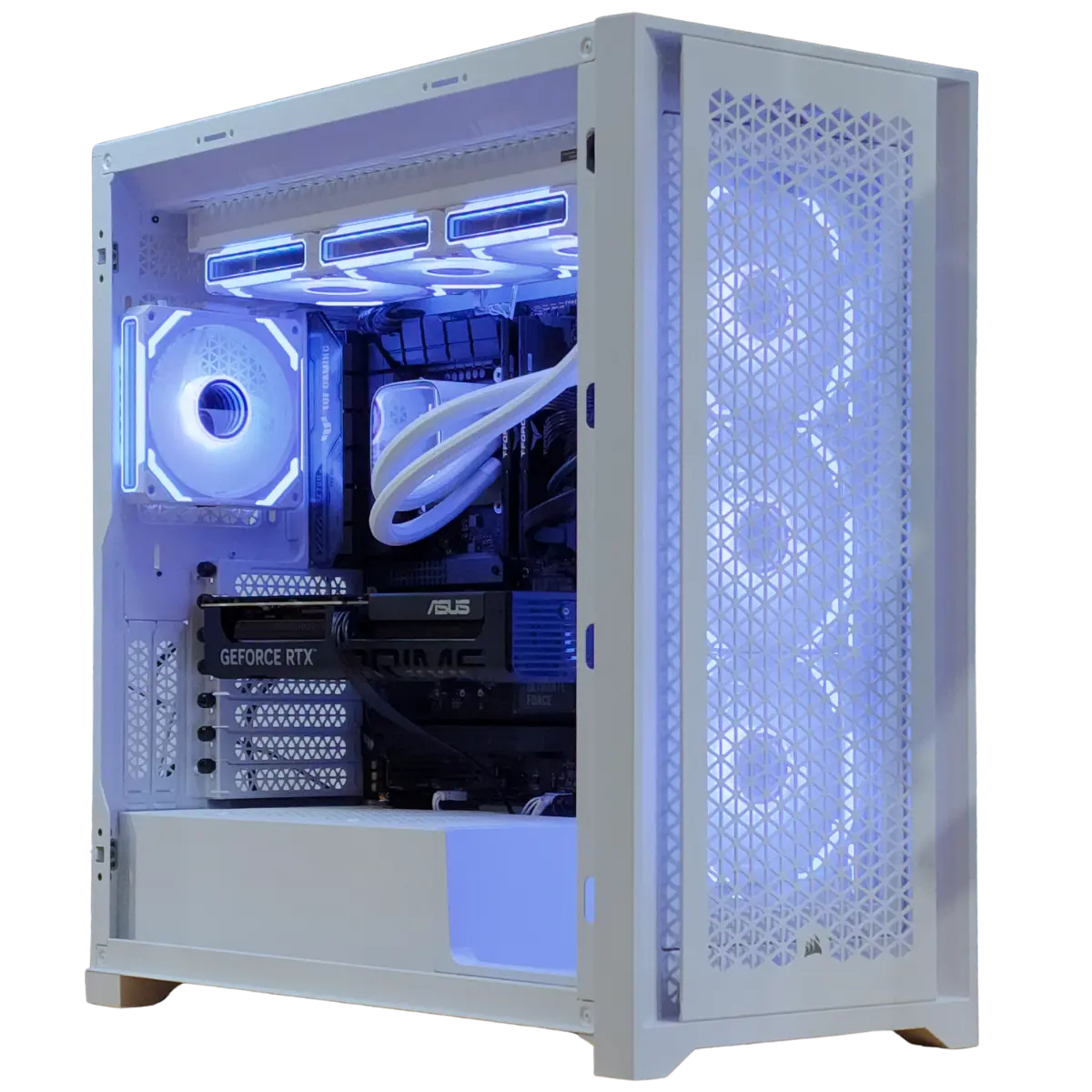
- Configurable gaming PC: pick your storage, memory and graphics card, and we build the PC for you.
SSD FAQ
Can I add an SSD to an older PC?
Usually, yes. If your motherboard has no M.2 slot, a 2.5-inch SATA SSD connects with the same cables as a hard drive and still transforms loading times.
Do solid-state drives wear out?
Every drive has a rated endurance, but normal gaming writes far less data than that rating allows. Most players replace a drive for more space long before it wears out.
Should Windows and games share one drive?
It is fine to keep both on one large NVMe SSD. If you have two drives, put Windows and your most-played games on the faster one.
Do I need to defragment an SSD?
No. Windows recognises solid-state storage and runs a quick TRIM command instead of a defragment, so you can leave the default settings alone.
Choose your next SSD
A fast drive is the cheapest way to make a gaming PC feel new again. Pick an NVMe model with enough space for the games you play now plus room to grow, and add a second drive when your library outgrows it. Browse our storage drives, or contact us and we will help you choose the right SSD for your PC.