MOZA Pit House is the free Windows software that controls every MOZA device, from wheelbases and wheels to pedals, shifters, dashboards and flight sim gear. Getting it right is the difference between a wheel that feels vague and one that feels alive. This guide walks you through installing MOZA Pit House, updating firmware, setting up force feedback, calibrating pedals, saving presets and fixing common problems, so your setup feels its best from the first lap.
North Gaming PCs stocks the full MOZA range, priced in Canadian dollars with a 2-year warranty on every product. Every price is shown in Canadian dollars, so there is no surprise currency conversion at checkout, and you can email our team whenever you need help choosing.
What is MOZA Pit House?
MOZA Pit House is the configuration hub for MOZA hardware. It detects connected devices, updates their firmware, sets force feedback and controls, configures displays and lights, and stores profiles for different games. You only need it on Windows, and once settings are saved to the base, many work even when the software is closed.
Installing MOZA Pit House
- Download the latest version from the official MOZA Racing website.
- Install it on your Windows PC and restart if prompted.
- Connect your wheelbase power and USB, then turn the base on.
- Open MOZA Pit House and let it detect your devices.
- Accept any firmware updates before you start racing.
Plug the base into a USB port on the motherboard rather than a hub for the most stable connection.
Updating firmware
Firmware updates improve force feedback, fix bugs and add features. MOZA Pit House notifies you when updates are available for each device. Update one device at a time, keep cables connected and do not turn off the base during an update.
The main force feedback settings
Settings names can change between versions, but these are the core controls:
- Maximum steering angle: set to 900 or 1080 degrees, and let games match each car automatically.
- Game force feedback intensity: how strongly the game’s signal is passed to the base.
- Maximum output torque limit: caps the base’s strength; lower it for safety and comfort.
- Road sensitivity: how much surface detail you feel.
- Wheel damper and friction: add weight and smoothness; keep them low.
- Natural inertia: adds a sense of rim weight; raise it slightly for realism.
Recommended starting settings
These starting points suit most racers:
- Maximum output torque limit: 60 to 80% at first, raising it as you get comfortable.
- Game force feedback intensity: 100%, then fine-tune strength in the game.
- Road sensitivity: middle of the range.
- Wheel damper: around 10 to 20%.
- Wheel friction: 0 to 10%.
- Natural inertia: a little above default.
Change one setting at a time and test it on the same car and track.
Per-game presets
MOZA Pit House stores presets, so you can switch settings for each game. Popular sims have recommended presets that make a great starting point. Save your own versions once you are happy with the feel, and name them clearly so you can find them quickly.
Configuring wheels and buttons
When you attach a wheel, MOZA Pit House shows its buttons, paddles, rotary encoders and lights. You can test inputs, change button modes, set rev light colours and configure display pages on wheels such as the FSR2 and Vision GS. Our MOZA wheel guide explains each rim.
Calibrating pedals
Pedal calibration ensures the full range of travel is used. In MOZA Pit House, open the pedal settings, press each pedal fully and release it to calibrate. Set dead zones at the top and bottom to stop accidental inputs. Adjust the output curve to make the brake or throttle more progressive. For load cell pedals such as the CRP2, set the maximum brake force to a level you can reach comfortably.
Shifters and handbrakes
Shifters and handbrakes connected to the base or by USB appear in MOZA Pit House. Calibrate the handbrake’s range and choose whether the sequential shifter acts as buttons. Test every gear on the H-pattern shifter before you race.
Dashboards and telemetry
The CM2 racing dash and wheel displays use game telemetry. In MOZA Pit House, choose display pages, rev light behaviour and the information you want to see, such as gear, speed, lap times and fuel. Some games need telemetry enabled in their own settings first.
Active pedals and haptics
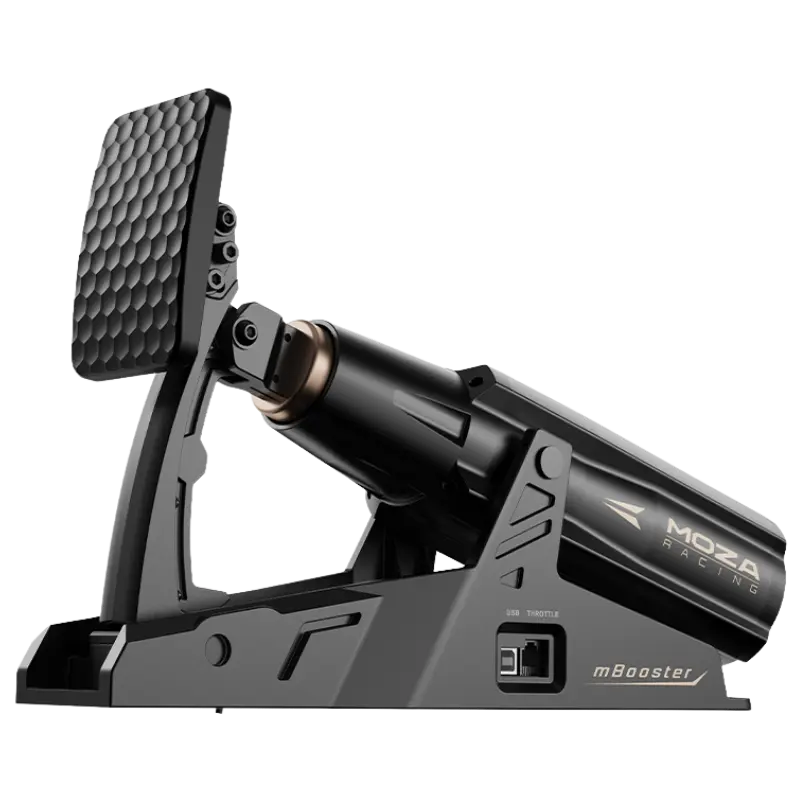
The mBooster active pedal uses a motor to simulate ABS, pedal resistance and other effects. MOZA Pit House controls its force curve, travel and effect strength. Haptic kits can add vibration for wheel slip and lock-ups. Start with subtle effects and increase them slowly.
Flight sim devices
MOZA Pit House also configures MOZA yokes, joysticks, throttles and rudder pedals. You can calibrate axes, set force feedback on supported bases and map buttons. Our flight sim hardware guide covers the flight range.
Safety settings
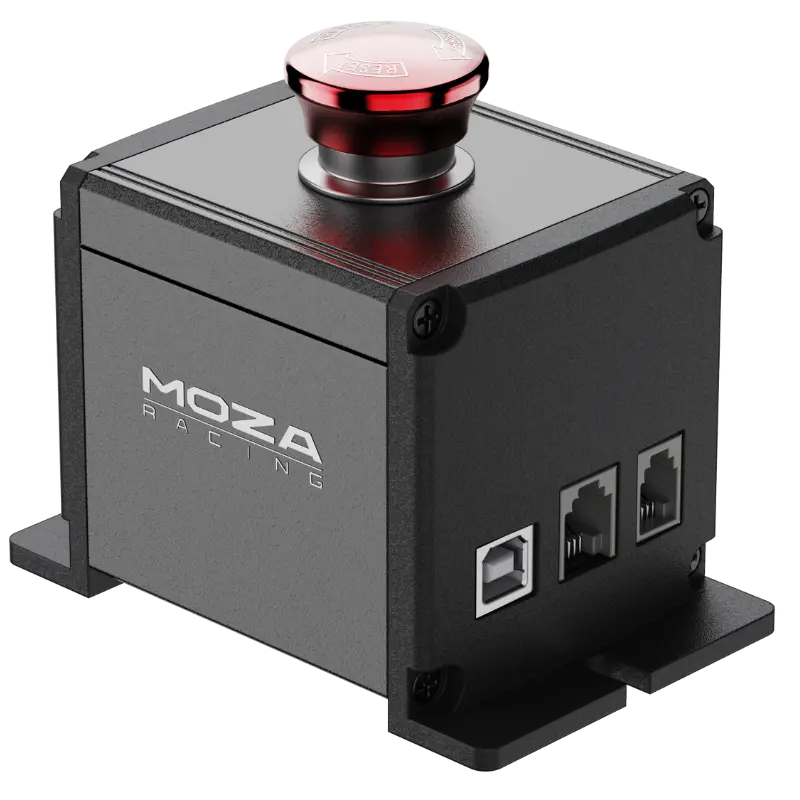
Strong direct drive bases deserve respect. Set a sensible torque limit, use the emergency stop switch and enable any safety features in MOZA Pit House, such as hands-off protection. Never lean into the wheel when starting a game or loading a session.
Troubleshooting MOZA Pit House
- Device not detected: try another USB port, reinstall the software and check power.
- Weak force feedback: check the torque limit and game force feedback settings.
- Oscillation on straights: add a little damper or lower the strength.
- Buttons not working in game: check bindings in the game and in the software.
- Firmware failed: restart the base and try the update again.
Settings for popular games
Many sims set rotation automatically, so leave the base at 900 or 1080 degrees. In GT sims, lower road effects slightly for a cleaner feel. In rally and drifting, raise road sensitivity and reduce damping for faster response. In iRacing, use the game’s auto-calibration for strength.
Our picks
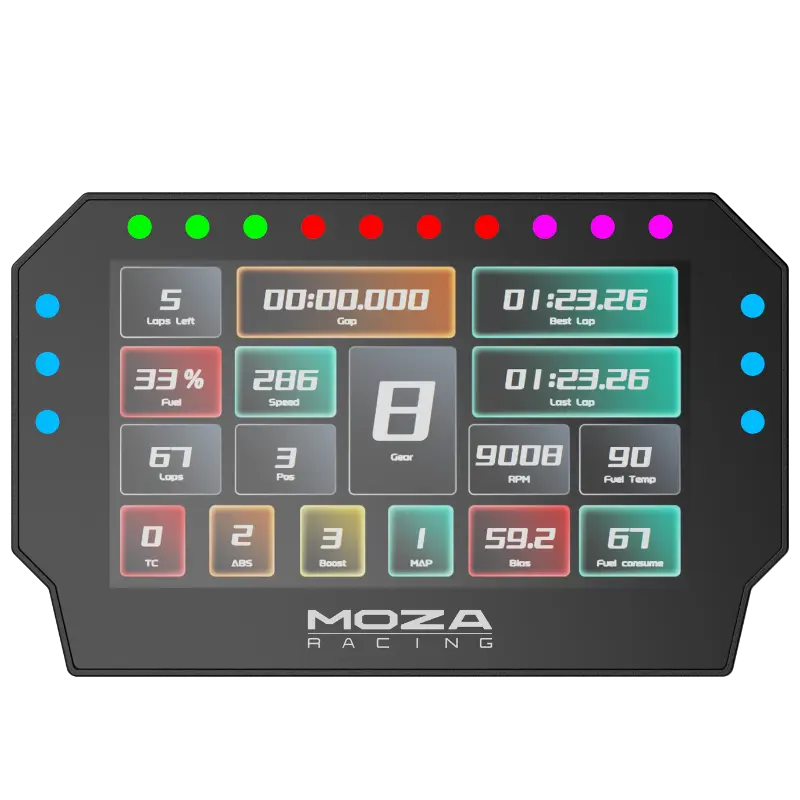
- MOZA CM2 racing dash: a telemetry display configured in Pit House.
- MOZA mBooster active pedal: an active pedal with programmable effects.
- MOZA emergency stop switch: instant safety cut-off for your base.
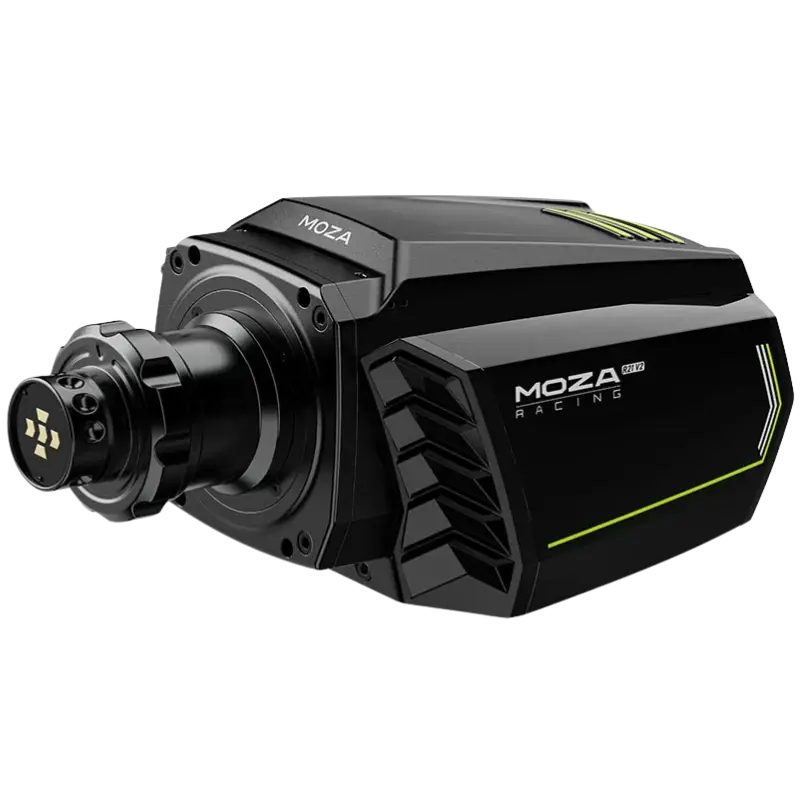
The MOZA R21 V2 shows how much MOZA Pit House can fine-tune a high-torque base.
MOZA Pit House FAQ
Is MOZA Pit House free?
Yes. It is a free download from MOZA Racing.
Does MOZA Pit House run on Mac?
No. It is designed for Windows.
Do I need Pit House open while racing?
Settings are saved to the base, but keep it open for telemetry and dashboards.
How often should I update firmware?
Update when MOZA releases new versions, especially if they fix issues you notice.
What torque limit should I use?
Start at 60 to 80% and raise it as you get comfortable.
Can I share presets?
Yes. Many racers share presets online, which helps when starting a new game.
Does Pit House work on Xbox?
Configure the base on a PC; settings stay on the base for Xbox use.
Why does my wheel feel too heavy?
Lower the torque limit or damper. Heavy, slow steering usually means damping or inertia is set too high.
Fine-tune your setup
MOZA Pit House gives you deep control over every MOZA device. Start with sensible settings, change one thing at a time and save presets for each game. Download the software from the official MOZA Racing website, browse our sim racing accessories, or contact us for help.